
BizTalk AS2 implementation is challenging as it involves the security configuration and signed and encrypted communication with your partner. Even a small mistake can create a problem which may take days to resolve. I would be detailing below major tasks.
1. Server Certificate configuration
o Certificate store level configuration
o IIS level configuration
o BizTalk level configuration
2. Partner certificate configuration
o Certificate configuration
§ Certificate store level configuration
§ IIS level configuration
§ BizTalk level configuration
· At Send Port
· At Partner’s Party
3. References
MSDN and other internet sources
1.Server Certificate creation and configuration
1.1 Certificate creation
You can use Certificate Authority to generate the certificate as per the requirement of AS2 communication. You need to install the CA on your machine by ADD/REMOVE Programs and then Add/Remove Windows component. You need to have the install CD. If you are part of the Active Directory Enterprise Admin Group you can install the Enterprise Root CA which has some extended facility over the Standalone Root CA. If CA is installed as Enterprise Root CA you can apply and use custom templates which will not be the case in case of Standalone Root CA. Below is the custom template to be used to generate AS2 specific certificate.
If your partner is open to accept self signed certificates then you can also use MakeCert tool to generate the certificates. Below is the command to generate the MakeCert certificates. MakeCert tool is installed as part of standard VS installation.
makecert -r -pe -n "CN= MyAS2Test" -b 01/01/2000 -e 01/01/2036 -eku 1.3.6.1.5.5.7.3.1 -ss my -sr localMachine -sky exchange -sp "Microsoft RSA SChannel Cryptographic Provider" -sy 12
To help secure AS2 data transfer, you must add the appropriate certificate to the appropriate certificate store, and associate the certificates with the appropriate BizTalk artifacts. The following certificates are used to help secure AS2 messages:
Your partner will send the certifcate's public key which you need to install and Add at two places under certificates store.
i- Trusted Root Certification
ii- other People store
After this you need to set this certificate at the Send Port and Party configuration.
2- You need two certificates.
i- Partner's certificate with public key (.cer).
ii - Your own certificate with public (.cer) and private key (.pfx). You need to share the certificate (.cer) with your partner. Your partner will use this certificate to encrypt the 850 message sent to you and using the private key you will decrypt this.
1.2 Server Certificate configuration
Please refer below section to create the certificate. Once certificate is created export the certificates private key and public key. Public key of the certificate needs to be shared with the client (Bunge) and private key need to be exported to below certificate stores.
1- Personal
2- Trusted Root Certification Authority.
Note: certificate need to be added for current user, BT service user and Computer.
1.2.1 Certificate store level configuration
1.2.2 IIS level configuration
NA
1.2.3 BizTalk level configuration
The certificate needs to be added to BizTalk Group and All the Hosts.
BizTalk Group
The server certificate should be configured for BizTalk Group. Please refer the below screen shot.
1.2.4 IIS level configuration
NA
1.2.5 BizTalk level configuration
The certificate needs to be added to BizTalk Group and All the Hosts.
BizTalk Group
The server certificate should be configured for BizTalk Group. Please refer the below screen shot.
Hosts
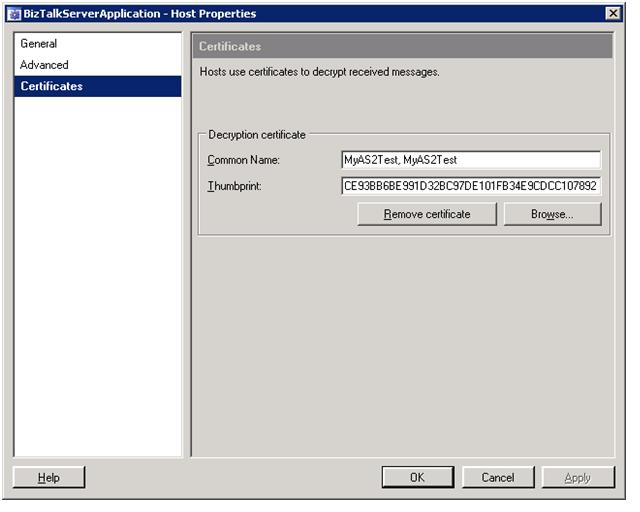
The server certificate should be configured for all the Hosts. Below is one example for the BizTalkServerApplication Host.
2. Partner certificate configuration
2.1 Certificate configuration
2.1.1 Certificate store level configuration
Server will receive the certificate (.cer, public key of the partner certificate) from Bunge. The certificate should be installed and added to below two certificate stores for Computer’s certificate store.
1- Other people
2- Trusted Root Certification Authorities for current user and for BT service user.
Trusted Root Certification Authorities
Console Root --> Trusted Root Certification Authority --> Certificates
Other people
Console Root --> Other People --> Certificates
2.1.2 IIS level configuration
2.1.3 BizTalk level configuration
2.1.3.1. At Send Port
Double click on the Send Port and go to Certificate and assign the certificate.
2.1.3.2 At Partner’s Party
Right click on the Party and go to main Party Properties. Go to Certificate TAB and assign the certificate.
Hope this should provide you with some help. Cheers !