
 UPDATE – 12th November 2013 - Windows 8 instructions
In a tale worthy of the business book Who Moved My Cheese Microsoft have relocated the graphic equalizer yet again to another hidden section of Windows Media Player. It may be still be versioned Windows Media Player 12 but it’s not quite the same.
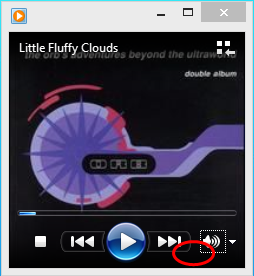
First, load Windows Media Player, and navigate to the now playing view with Ctrl+3. This is the smallest minimalist view. You now need to hover at the bottom of the pane, and right click somewhere not on an actual control. I’ve highlighted this with a red circle, between the next track and volume control (see right).
When you do this you will see a pop-up menu, on which you should select Enhancements –> Graphic equaliser. This will display the graphic equaliser you knew was there but couldn’t quite work out how to locate.
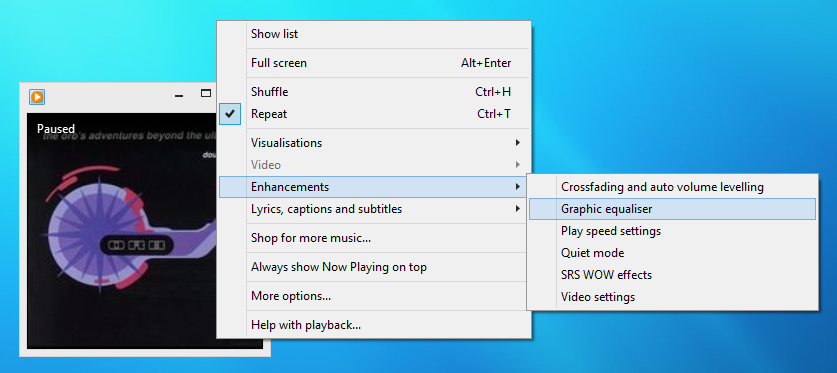
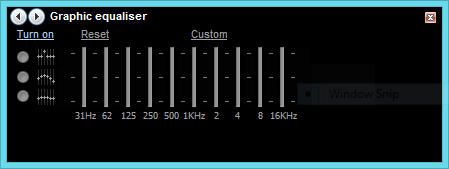
It’s not made any easier by the fact that in the midi view (Ctrl+2) on the View menu there is the same option Enhancements –> Graphic equaliser, it just doesn’t appear to do anything. It certainly doesn’t bring up the graphic equaliser panel for you to change settings.
Windows 7 instructions
I have used Jabra BT320s Bluetooth headsets for some time to listen to music on my desktop PC, under Vista and Windows 7.
Although all the same model, they have dramatically different maximum volume settings (which I’m guessing are hardware related in some manner). It can be handy to use the graphic equaliser in Windows Media Player to boost the volume, especially of radio programmes I’ve recorded on my DAB radio.
When I upgraded to Windows 7 it came with Windows Media Player 12, and the graphic equaliser appeared to have gone missing from the main window. However, it is there, you just need to know where to look.
If you just ‘play’ an MP3 track you get a default album art/visualisation windows,
!
Well, no equaliser there. However, it used to be on the windows where you could see the playlist, you can access this by pressing the Alt key and then selecting Show Menu Bar (actually, Ctrl+1 also works but I only found that out when researching how to get the equaliser visible).
!
Now it used to be down near the time elapsed/remaining area, but it’s not there. Hmmmm.
So I did some Googling, and discovered it is available on the ‘mini display’ and the best way to get this is to press Ctrl+2.
!
Look, there is the icon for the equaliser, just there in the bottom right corner...
!
... if you click on that icon you finally get the equaliser,
!Equaliser now available
Once adjusted you can hit Ctrl+1 to go back to playlist mode, or Ctrl+3 to view the album art/visualisation and the equaliser setting will remain in place.
I have no idea why they made it this hard, I really don’t.