
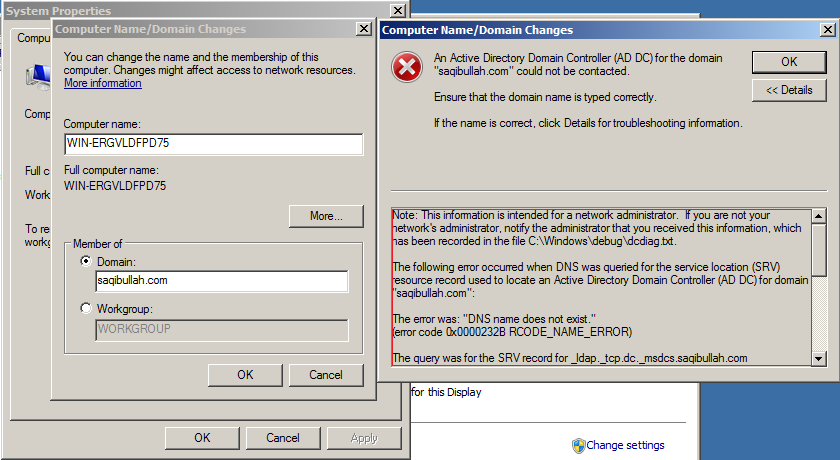
When you are going to join any computer from domain controller the following error will be appeared on your computer screen.**
Full Error Message**
Note: This information is intended for a network administrator. If you are not your network’s administrator, notify the administrator that you received this information, which has been recorded in the file C:\Windows\debug\dcdiag.txt.
The following error occurred when DNS was queried for the service location (SRV) resource record used to locate an Active Directory Domain Controller for domain saqibullah.com:
The error was: “DNS name does not exist.”
(error code 0x0000232B RCODE_NAME_ERROR)
The query was for the SRV record for _ldap._tcp.dc._msdcs.saqibullah.com
Common causes of this error include the following:
- The DNS SRV records required to locate a AD DC for the domain are not registered in DNS. These records are registered with a DNS server automatically when a AD DC is added to a domain. They are updated by the AD DC at set intervals. This computer is configured to use DNS servers with the following
IP addresses:
192.168.109.143
- One or more of the following zones do not include delegation to its child zone:
Saqibullah
.com
. (the root zone)
For information about correcting this problem, click Help.
I am writing the following steps to resolve this common issue.
**
Solution:**
When you take properties of Computer the following screen will appear.
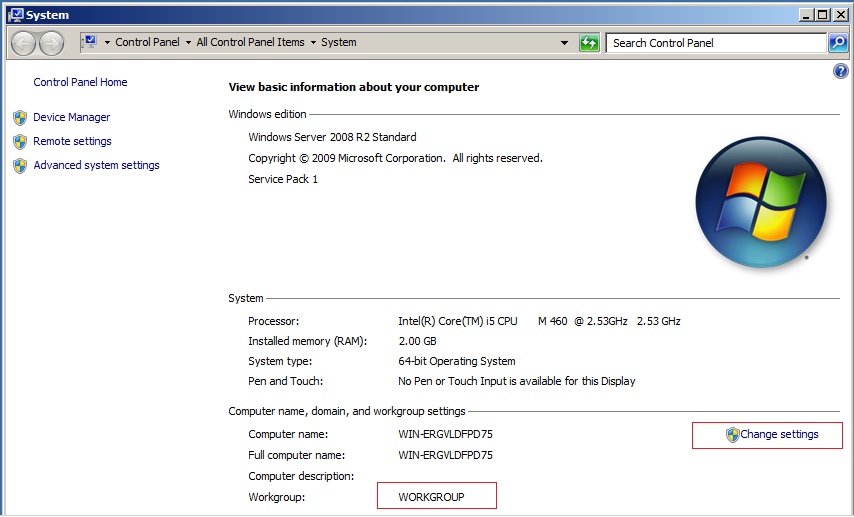
Computer properties showing that your computer is not the part of and Domain, so if you want that your computer should be a part of the domain then click on the Change Settings links
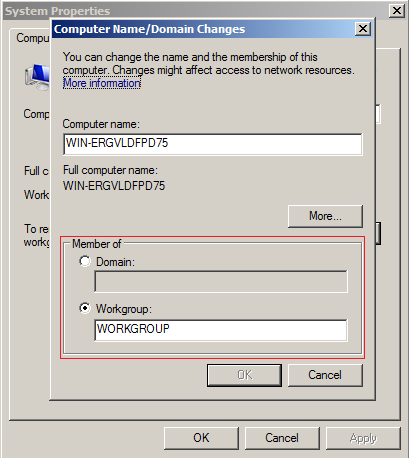
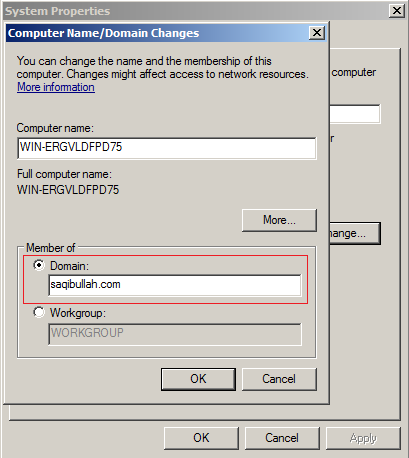
Computer Name/Domain Changes screen will appear in which Member of group showing that your computer not a part of the domain. So click on domain and type your domain name in the textbox and press OK button.
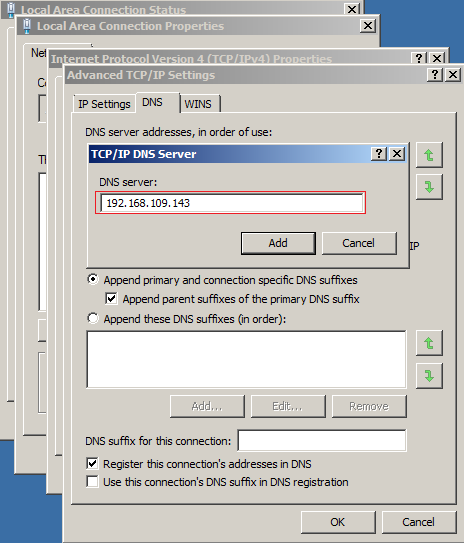
Its mean your computer unable to find the Active Directory Domain Controller, so you need to tell your computer where it find the DNS server. Open Network and Sharing Center from the control panel and then click Changes Adapter Settings and take the properties of Local Area Connection, and then take properties of Internet Protocol Version 4. Click on Advanced button in the bottom and select DNS tab. Following screen will appear.
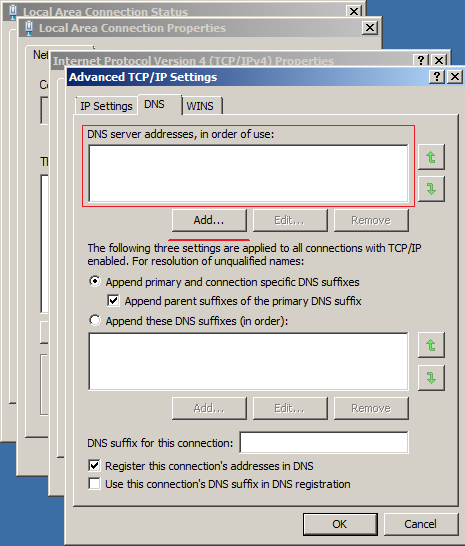
Add DNS server address in the list.
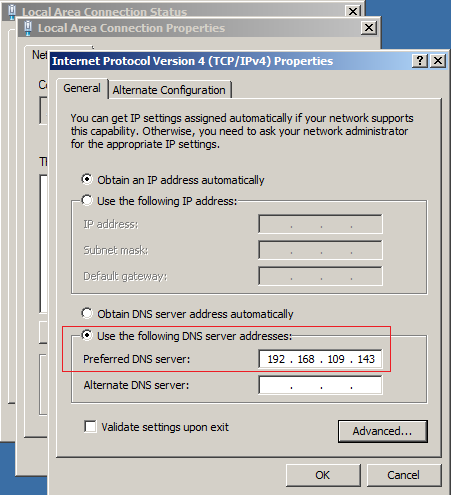
Preferred DNS Server automatically set, so click OK button and then close the Local Area Connection Properties.
Again open the Computer Name/Domain Changes screen by take properties Computer following screen appear, select Domain option and type domain name in the textbox and click OK button.
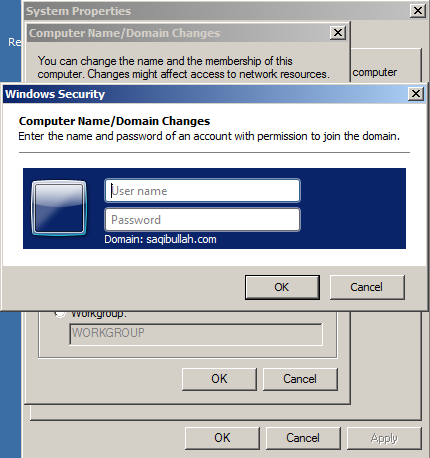
Windows security screen will appear in which type domain user name and password.
Welcome screen will appear shortly.
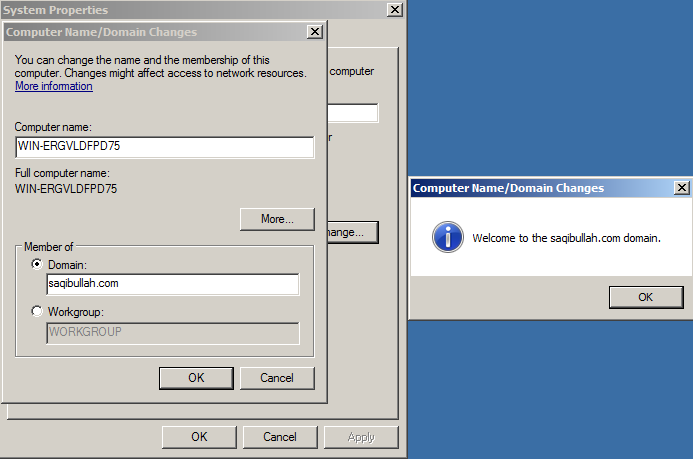
Now your computer is a part of Domain.