
Till last year I was still checking in dll references (for libraries & packages) used by my software in TFS. I could then easily configure MS Build to look for all dependencies at that certain location in TFS. NuGet simplifies searching & installing libraries you want to use in your software. It is very easy to configure MS Build to take advantage of the auto restore feature offered by NuGet. The biggest benefit is, you don’t need to worry about either installing the libraries nor do you need to worry about explicitly checking in references in TFS.
- Step 1 - Enable NuGet Package Restore
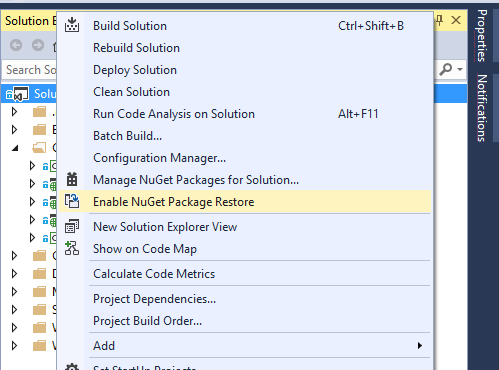
Projects that use MSBuild-Integrated package restore typically contain a .nuget folder with three files:
- NuGet.Config
- NuGet.exe
- NuGet.targets
Since the presence of a NuGet.targets file determines whether NuGet will continue to use the MSBuild-Integrated approach, this file must be removed. Also, as the .nuget\NuGet.exe file is not used by Automatic Package Restore, it likewise can be removed. By default, the NuGet.Config file instructs NuGet to bypass adding package binaries to source control. Automatic Package Restore will honour this as long as you leave this file in place. Note that NuGet.Config only has an effect when using Visual Studio to integrate with Team Foundation Server (TFS). In addition to these files, NuGet modifies the project files in the solution to reference the NuGet.targets file so it can participate in the build process. When migrating to Automatic Package Restore, these references must also be removed.
Remove the NuGet.exe and NuGet.targets files from the solution's .nuget folder. Make sure the files themselves are also removed from the solution workspace.
Retain the NuGet.Config file to continue to bypass adding packages to source control.
- Step 2 – Close Down Visual Studio
Each project in your solution that has picked up any of the below listed tags in the project properties will need to be removed. Open the project in Notepad and look for the below tags, remove these tags…
1. ------------------- true
<Target Name="EnsureNuGetPackageBuildImports" BeforeTargets="PrepareForBuild">
This project references NuGet package(s) that are missing on this computer. Enable NuGet Package Restore to download them. For more information,
see http://go.microsoft.com/fwlink/?LinkID=322105. The missing file is {0}.
- Step 3 – Open the solution and check in the changes
Once you have made the above listed changes, you are good to check in the changes.
Trigger the build now, the build server should now be able to successfully resolve the package references…
More details here… http://docs.nuget.org/docs/workflows/using-nuget-without-committing-packages
Cheers,
Tarun :-]