
I am sure you have been in the situation where you start following a change through the list of builds and suddenly realize a lot of the builds have been deleted by some one! The good news is, when the build is deleted from the build explorer in Visual Studio it is only soft deleted in the database.
!
Are you wondering who moved your cheese?
In this blog post, I'll give you a walkthrough on how to write a simple utility to get the list of deleted builds and their details using the TFS API.
Download the sample application – wpf,.net 4, you need to have vs sdk installed on your machine to run it.
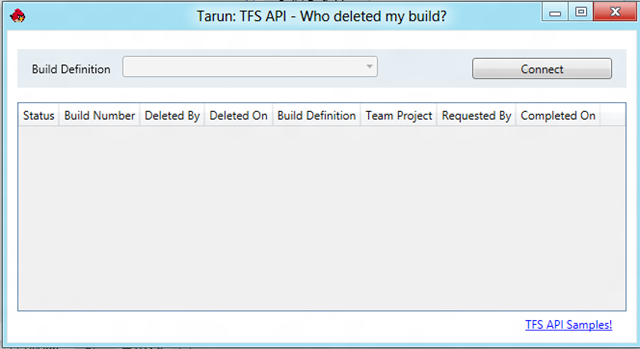
1. Connect to TFS using the API
If you are new to the TFS API, refer to this blog post on getting started with the Visual Studio SDK.
The below snippet will help present a connect to tfs pop up to the user
private TfsTeamProjectCollection _tfs; private string _selectedTeamProject;
public bool ConnectToTfs { bool isSelected = false; TeamProjectPicker tfsPP = new TeamProjectPicker(TeamProjectPickerMode.SingleProject, false); tfsPP.ShowDialog; this._tfs = tfsPP.SelectedTeamProjectCollection;
if (tfsPP.SelectedProjects.Count > 0) { this._selectedTeamProject = tfsPP.SelectedProjects[0].Name; isSelected = true; } return isSelected; }
2. Get All the build definitions for the selected Team Project using the TFS API
By using the IBuildService you can get access to the QueryBuildDefinition method which takes team project and returns the build definitions associated to the team project.
private IBuildDefinition[] GetAllBuildDefinitionsFromTheTeamProject(_selectTeamProject) { _bs = _tfs.GetService; return _bs.QueryBuildDefinitions(_selectedTeamProject); }
3. Get all the deleted builds for the chosen build definition using the TFS API
By using the QueryBuilds methods it is possible to construct a query to confine the search to builds for the selected build definition that have been marked as deleted.
// bdef is the selected build definition var bdef = (((ComboBox)sender).SelectedItem) as IBuildDefinition;
if (bdef!= null) { // _bs = IBuildServer service, create a new query var def = _bs.CreateBuildDetailSpec(_selectedTeamProject); // only bring back the last 100 deleted builds def.MaxBuildsPerDefinition = 100; // query for only deleted builds def.QueryDeletedOption = QueryDeletedOption.OnlyDeleted; // Last deleted should be returned 1st def.QueryOrder = BuildQueryOrder.FinishTimeDescending; // Only look for deleted builds in the chosen build definition def.DefinitionSpec.Name = bdef.Name; // Bring back deleted builds from any state def.Status = BuildStatus.All; // Pass this query for processing to the build service var builds = _bs.QueryBuilds(def).Builds;
// Add each deleted build to a local buildDetail entity, // You could switch this with Console.WriteLine if you // would like to see the output instead. foreach (var build in builds) { dgBuildDetails.Items.Add(new BuildDetail { BuildStatus = build.Status.ToString, BuildNumber = build.BuildNumber, BuildDef = build.BuildDefinition.Name, TeamProject = build.TeamProject, RequestedBy = build.RequestedBy, RequestedOn = build.FinishTime.ToString, DeletedBy = build.LastChangedBy, DeletedOn = build.LastChangedOn.ToString }); } }
4. Putting it all together
Download the sample application – wpf,.net 4, you need to have vs sdk installed on your machine to run it.
using System; using System.Collections.Generic; using System.Diagnostics; using System.Linq; using System.Text; using System.Windows; using System.Windows.Controls; using System.Windows.Data; using System.Windows.Documents; using System.Windows.Input; using System.Windows.Media; using System.Windows.Media.Imaging; using System.Windows.Navigation; using System.Windows.Shapes; using Microsoft.TeamFoundation.Build.Client; using Microsoft.TeamFoundation.Client; using Microsoft.TeamFoundation.TestManagement.Client; using Microsoft.TeamFoundation.VersionControl.Client;
namespace TfsApiGetDeletedBuildDetails { ///
private TfsTeamProjectCollection _tfs; private string _selectedTeamProject; private IBuildServer _bs; private VersionControlServer _vcs;
public bool ConnectToTfs { bool isSelected = false; TeamProjectPicker tfsPP = new TeamProjectPicker(TeamProjectPickerMode.SingleProject, false); tfsPP.ShowDialog; this._tfs = tfsPP.SelectedTeamProjectCollection;
if (tfsPP.SelectedProjects.Count > 0) { this._selectedTeamProject = tfsPP.SelectedProjects[0].Name; isSelected = true; } return isSelected; }
private void btnConnect_Click(object sender, RoutedEventArgs e) { if (ConnectToTfs) { cbBuildDef.IsEnabled = true; _vcs = _tfs.GetService; cbBuildDef.ItemsSource = GetAllBuildDefinitionsFromTheTeamProject; cbBuildDef.DisplayMemberPath = "Name"; cbBuildDef.SelectedValuePath = "Uri"; cbBuildDef.SelectedIndex = 0; } }
// Grab all build definitions private IBuildDefinition[] GetAllBuildDefinitionsFromTheTeamProject { _bs = _tfs.GetService; return _bs.QueryBuildDefinitions(_selectedTeamProject); }
public class BuildDetail { public string BuildStatus { get; set; } public string BuildNumber { get; set; } public string BuildDef { get; set; } public string TeamProject { get; set; } public string RequestedBy { get; set; } public string RequestedOn { get; set; } public string DeletedBy { get; set; } public string DeletedOn { get; set; } }
// Get All Deleted Builds for the selected build definition private void cbBuildDef_SelectionChanged(object sender, SelectionChangedEventArgs e) { dgBuildDetails.Items.Clear;
List buildDetails = new List;
// bdef is the selected build definition var bdef = (((ComboBox)sender).SelectedItem) as IBuildDefinition;
if (bdef!= null) { // _bs = IBuildServer service, create a new query var def = _bs.CreateBuildDetailSpec(_selectedTeamProject); // only bring back the last 100 deleted builds def.MaxBuildsPerDefinition = 100; // query for only deleted builds def.QueryDeletedOption = QueryDeletedOption.OnlyDeleted; // Last deleted should be returned 1st def.QueryOrder = BuildQueryOrder.FinishTimeDescending; // Only look for deleted builds in the chosen build definition def.DefinitionSpec.Name = bdef.Name; // Bring back deleted builds from any state def.Status = BuildStatus.All; // Pass this query for processing to the build service var builds = _bs.QueryBuilds(def).Builds;
// Add each deleted build to a local buildDetail entity, // You could switch this with Console.WriteLine if you // would like to see the output instead. foreach (var build in builds) { dgBuildDetails.Items.Add(new BuildDetail { BuildStatus = build.Status.ToString, BuildNumber = build.BuildNumber, BuildDef = build.BuildDefinition.Name, TeamProject = build.TeamProject, RequestedBy = build.RequestedBy, RequestedOn = build.FinishTime.ToString, DeletedBy = build.LastChangedBy, DeletedOn = build.LastChangedOn.ToString }); } } }
private void Hyperlink_RequestNavigate(object sender, RequestNavigateEventArgs e) { Process.Start(new ProcessStartInfo(e.Uri.AbsoluteUri)); e.Handled = true;
} } }
Thank you for taking the time out and reading this blog post. If you enjoyed the post, remember to subscribe to http://feeds.feedburner.com/TarunArora.
Check out the other posts on cool tools using TFS API.