
Download from here
If you track your project tasks against work items, you would know the importance of Work Item History. This is one way for you to reflect on who did what and when, some organizations use it for auditing purposes as well. Using the WorkItemStore service it is possible to get the work item revisions, now depending on how creative you are, you can plot the data and visualize the changes as you like.
In this blog post I'll be showing you,
- How to get the work item history programmatically using TFS API
- Display the work item history programmatically in a data grid
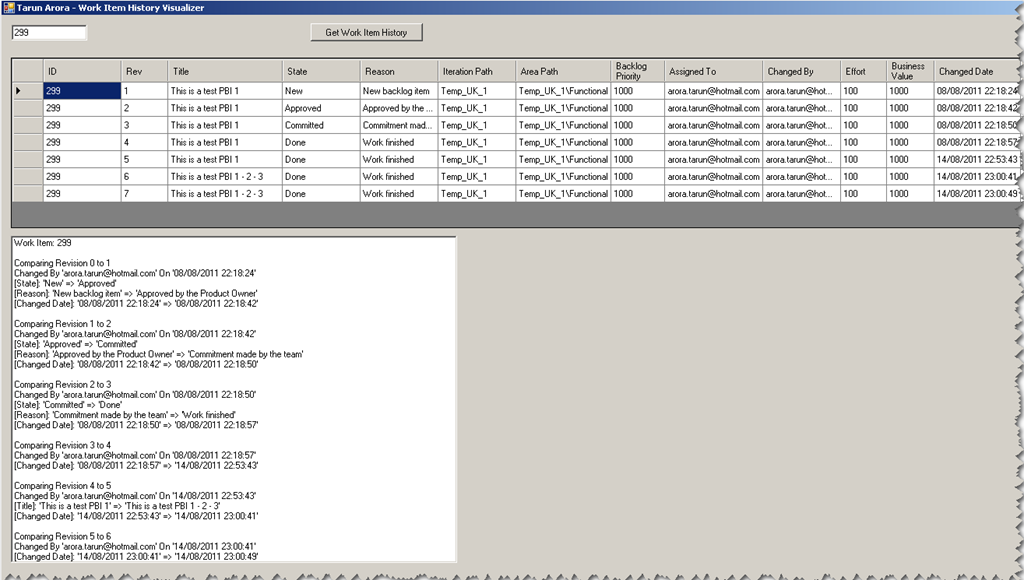
A screen shot of what we are after,
1. Get the Work Item Details Programmatically using TFS API
I’ll start simple. Pass a work item id to get the work item details.
public WorkItem GetWorkItemDetails(int id) { var tfs = TfsTeamProjectCollectionFactory.GetTeamProjectCollection( new Uri("https://tfs2010:8080/defaultcollection")); var service = tfs.GetService<WorkItemStore>();
        return service.GetWorkItem(id);
    }
The above code will return the WorkItem object, we will be interested in the property “Revisions” - Gets a RevisionCollection object that represents a collection of valid revision numbers for this work item.
2. Get the Work Item Revision ‘History’ Programmatically using TFS API
Now it is very important to understand that the revision history can only be retrieved for work item fields available in the collection WorkItem.Fields, so if you used the below code to get the workitem revision history you will NOT see the history but end up reloading the current workitem object again and again.
        // Returns a work item object
        var wi = GetWorkItemDetails(299);

        // This will **NOT** give you work item history

        // will only loop through revisions and
        // actually not load the work item history
        // but will load the latest work item revision
        // again and again
        foreach (Revision revision in wi.Revisions)
        {
            Debug.Write(revision.WorkItem);
        }
Let’s have a look at the Fields property in the WorkItem object,
        // Work Item fields for which we can get history
        foreach (Field field in wi.Fields)
        {
            Debug.Write(String.Format("{0}{1}", field.Name, Environment.NewLine));
        }
Output
Title State Authorized Date Watermark Rev Changed By Backlog Priority Integration Build Description HTML Reason Iteration Path Iteration ID Assigned To Work Item Type Effort Acceptance Criteria Created Date Created By Business Value Description History External Link Count Related Link Count Team Project Hyperlink Count Attached File Count Node Name Area Path Revised Date Changed Date ID Area ID Authorized As
So, it is safe to use the below code to get the work item history using the TFS API programmatically,
        // Returns a work item object
        var wi = GetWorkItemDetails(299);

        // Get All work item revisions
        foreach (Revision revision in wi.Revisions)
        {
            // Get value of fields in the work item revision
            foreach (Field field in wi.Fields)
            {
                Debug.Write(revision.Fields\[field.Name\].Value);
            }
        }
Lets see the output now,
Revision[0]: Title - This is a test PBI 1 Revision[0]: State - New Revision[0]: Authorized Date - 08/08/2011 22:18:24 Revision[0]: Watermark - 1 Revision[0]: Rev - 1 Revision[0]: Changed By - arora.tarun@hotmail.com Revision[0]: Backlog Priority - 1000 Revision[0]: Integration Build - Revision[0]: Description HTML - As a <type of user> I want <some goal> so that <some reason> Revision[0]: Reason - New backlog item Revision[0]: Iteration Path - Temp_UK_1 Revision[0]: Iteration ID - 161 Revision[0]: Assigned To - arora.tarun@hotmail.com Revision[0]: Work Item Type - Product Backlog Item Revision[0]: Effort - 100 Revision[0]: Acceptance Criteria - Revision[0]: Created Date - 08/08/2011 22:18:24 Revision[0]: Created By - arora.tarun@hotmail.com Revision[0]: Business Value - 1000 Revision[0]: Description - Revision[0]: History - Revision[0]: External Link Count - 0 Revision[0]: Related Link Count - 0 Revision[0]: Team Project - Temp_UK_1 Revision[0]: Hyperlink Count - 0 Revision[0]: Attached File Count - 0 Revision[0]: Node Name - Functional Revision[0]: Area Path - Temp_UK_1\Functional Revision[0]: Revised Date - 08/08/2011 22:18:42 Revision[0]: Changed Date - 08/08/2011 22:18:24 Revision[0]: ID - 299 Revision[0]: Area ID - 165 Revision[0]: Authorized As - arora.tarun@hotmail.com Revision[1]: Title - This is a test PBI 1 Revision[1]: State - Approved Revision[1]: Changed Date - 08/08/2011 22:18:42 … Revision[2]: Changed Date - 08/08/2011 22:18:50 … Revision[3]: Changed Date - 08/08/2011 22:18:57 … Revision[4]: Changed Date - 14/08/2011 22:53:43 … Revision[5]: Changed Date - 14/08/2011 23:00:41 …
Revision[6]: Title - This is a test PBI 1 - 2 - 3 Revision[6]: State - Done Revision[6]: Authorized Date - 14/08/2011 23:00:49 Revision[6]: Changed By - arora.tarun@hotmail.com Revision[6]: Backlog Priority - 1000 Revision[6]: Integration Build - Revision[6]: Description HTML -
Whats up ? Hello World
Revision[6]: Reason - Work finished Revision[6]: Iteration Path - Temp_UK_1 Revision[6]: Assigned To - arora.tarun@hotmail.com Revision[6]: Work Item Type - Product Backlog Item Revision[6]: Revised Date - 01/01/9999 00:00:00 Revision[6]: Changed Date - 14/08/2011 23:00:49 Revision[6]: Authorized As - arora.tarun@hotmail.com3. Putting everything together
Lets get the work item history and display the results through a datagrid
    /// <summary>
    /// This method takes a work item id, generates a datatable with all revision fields.
    /// </summary>
    public void GetWorkItemHistory()
    {
        var tfs =
            TfsTeamProjectCollectionFactory.GetTeamProjectCollection(
                new Uri("https://tfs2010:8080/defaultcollection"));
        var service = tfs.GetService<WorkItemStore\>();

        var wi = service.GetWorkItem(299);

        var dataTable = new DataTable();

        foreach (Field field in wi.Fields)
        {
            dataTable.Columns.Add(field.Name);
        }

        foreach (Revision revision in wi.Revisions)
        {
            var row = dataTable.NewRow();
            foreach (Field field in wi.Fields)
            {
                row\[field.Name\] = revision.Fields\[field.Name\].Value;
            }
            dataTable.Rows.Add(row);
        }

        dgWiHistory.DataSource = dataTable;
        dgWiHistory.Width = 1000;
        dgWiHistory.Height = 600;
        dgWiHistory.AutoGenerateColumns = true;
    }
4. Next Step - Visualize work item history
Let’s take this a step forward and do some visualization, I'll keep it simple by printing the results to the output window, but you can take this a step forward by printing the output to some visually attractive controls.
    /// <summary>
    /// This method takes a work item id, generates a datatable with all revision fields.
    /// Then goes through a comparison algorithm to determine the diff between the 2 rows.
    /// </summary>
    public void VisualiseWorkItemHistory()
    {
        // Connect to TFS
        var tfs =
            TfsTeamProjectCollectionFactory.GetTeamProjectCollection(
                new Uri("https://tfs2010:8080/defaultcollection"));

        // Get the work item store service
        var service = tfs.GetService<WorkItemStore\>();

        // Get the work item details
        var wi = service.GetWorkItem(299);

        var dataTable = new DataTable();

        foreach (Field field in wi.Fields)
        {
            dataTable.Columns.Add(field.Name);
        }

        // Loop through the work item revisions
        foreach (Revision revision in wi.Revisions)
        {
            // Get values for the work item fields for each revision
            var row = dataTable.NewRow();
            foreach (Field field in wi.Fields)
            {
                row\[field.Name\] = revision.Fields\[field.Name\].Value;
            }
            dataTable.Rows.Add(row);
        }

        // Add the revision data to a datagrid
        dgWiHistory.DataSource = dataTable;
        dgWiHistory.Width = 1000;
        dgWiHistory.Height = 600;
        dgWiHistory.AutoGenerateColumns = true;

        // List of fields to ignore in comparison
        var visualize = new List<string\>() { "Title", "State", "Rev", "Reason", "Iteration Path", "Assigned To", "Effort", "Area Path" };


        Debug.Write(String.Format("Work Item: {0}{1}", wi.Id, Environment.NewLine));

        // Compare Two Work Item Revisions
        for (int i = 0; i < dgWiHistory.RowCount; i++)
        {
            var currentRow = dgWiHistory.Rows\[i\];

            if (i + 1 < dgWiHistory.RowCount)
            {
                var currentRowPlus1 = dgWiHistory.Rows\[i + 1\];

                Debug.Write(String.Format("Comparing Revision {0} to {1} {2}", i, i + 1, Environment.NewLine));

                bool title = false;

                for (int j = 0; j < currentRow.Cells.Count; j++)
                {
                    if(!title)
                    {
                        Debug.Write(
                            String.Format(String.Format("Changed By '{0}' On '{1}'{2}", currentRow.Cells\["Changed By"\].Value,
                                                        currentRow.Cells\["Changed Date"\].Value, Environment.NewLine)));
                        title = true;
                    }

                    if (visualize.Contains(dataTable.Columns\[j\].ColumnName))
                    {
                        if (currentRow.Cells\[j\].Value.ToString() != currentRowPlus1.Cells\[j\].Value.ToString())
                        {
                            Debug.Write(String.Format("\[{0}\]: '{1}' => '{2}' {3}", dataTable.Columns\[j\].ColumnName,
                                                      currentRow.Cells\[j\].Value, currentRowPlus1.Cells\[j\].Value,
                                                      Environment.NewLine));
                        }
                    }
                }
            }
        }
    }
Output
Work Item: 299
Comparing Revision 1 to 2 Changed By 'arora.tarun@hotmail.com' On '08/08/2011 22:18:24' [State]: 'New' => 'Approved' [Reason]: 'New backlog item' => 'Approved by the Product Owner'
Comparing Revision 2 to 3 Changed By 'arora.tarun@hotmail.com' On '08/08/2011 22:18:42' [State]: 'Approved' => 'Committed' [Reason]: 'Approved by the Product Owner' => 'Commitment made by the team'
Comparing Revision 3 to 4 Changed By 'arora.tarun@hotmail.com' On '08/08/2011 22:18:50' [State]: 'Committed' => 'Done' [Reason]: 'Commitment made by the team' => 'Work finished'
Comparing Revision 4 to 5 Changed By 'arora.tarun@hotmail.com' On '08/08/2011 22:18:57'
Comparing Revision 5 to 6 Changed By 'arora.tarun@hotmail.com' On '14/08/2011 22:53:43' [Title]: 'This is a test PBI 1' => 'This is a test PBI 1 - 2 - 3'
Comparing Revision 6 to 7 Changed By 'arora.tarun@hotmail.com' On '14/08/2011 23:00:41'
Thoughts, Questions, Feedback, Suggestions, please feel free to add a comment.