
Great! You have reached that point where you would like to extend TFS. The first step is to connect to TFS programmatically.
Download:
In this blog post I’ll be showing you,
- How to connect to TFS programmatically using TFS 2010 SDK
- How to connect to TFS programmatically using TFS 2012 SDK
- DLL references required to connect to TFS programmatically
- Connectivity classes & scope
- How to establish a connection interactively
- How to establish a connection without user intervention
How to connect to TFS programmatically using TFS 2010 SDK
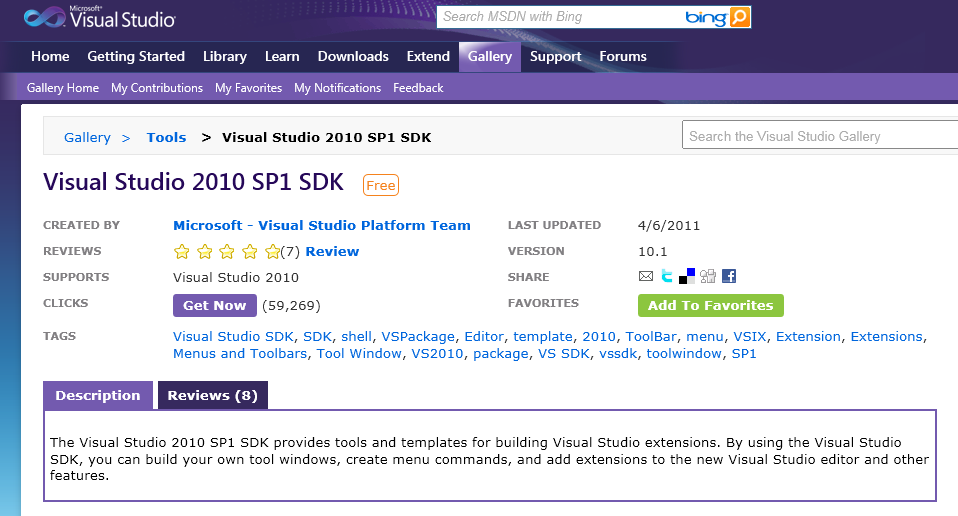
- Visual Studio Extension Gallery: Download VS 2010 SDK from extension gallery http://visualstudiogallery.msdn.microsoft.com/25622469-19d8-4959-8e5c-4025d1c9183d?SRC=VSIDE
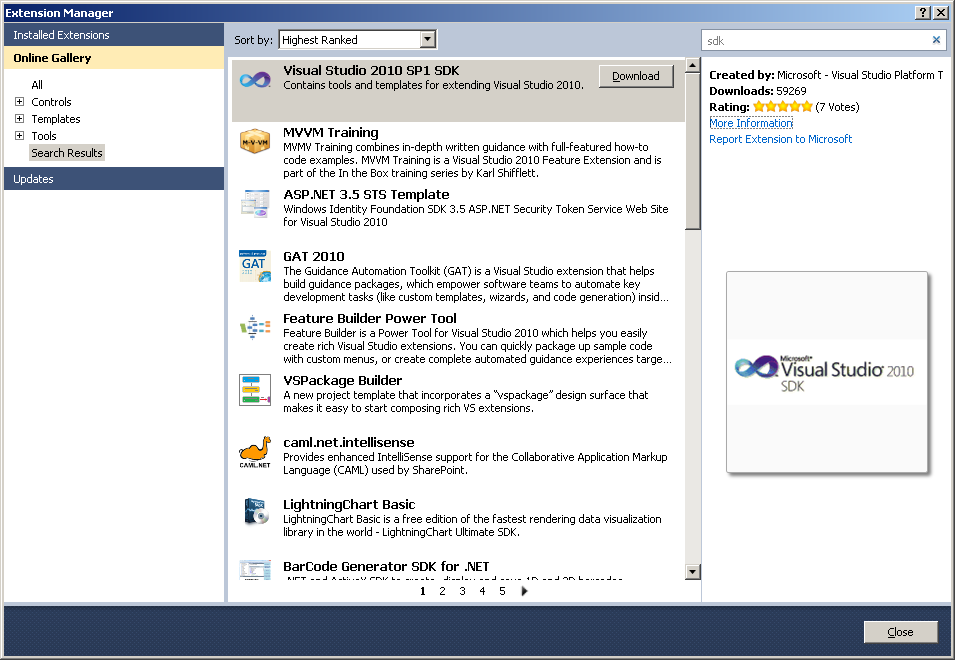
- Extension Manager: Alternatively you can also download this from the visual studio extension manager
How to connect to TFS programmatically using TFS 2012 SDK
- Visual Studio Extension Gallery: Download VS 2012 SDK from gallery http://visualstudiogallery.msdn.microsoft.com/b2fa5b3b-25eb-4a2f-80fd-59224778ea98
![image_thumb[7]](/images/tarunarora/tfs-2010-sdk-connecting-to-tfs-2010-programmaticallyndashpart-1/d61659b6-image_thumb7_2.png "image_thumb[7]")
- Extension Manager: Alternatively you can also download this from the visual studio extension manager
![image_thumb[1]](/images/tarunarora/tfs-2010-sdk-connecting-to-tfs-2010-programmaticallyndashpart-1/bd9f9290-image_thumb1_2.png "image_thumb[1]")
DLL references required to connect to TFS programmatically
Create a new Windows Forms Application project and add reference to TFS Common and client DLLs.
Note - If Microsoft.TeamFoundation.Client and Microsoft.TeamFoundation.Common do not appear on the.NET tab of the References dialog box, use the Browse tab to add the assemblies.
You can find them at %ProgramFiles%\Microsoft Visual Studio 10.0\Common7\IDE\ReferenceAssemblies\v2.0.
OR %ProgramFiles%\Microsoft Visual Studio 11.0\Common7\IDE\ReferenceAssemblies\v2.0.
Required References
using Microsoft.TeamFoundation.Client; using Microsoft.TeamFoundation.Framework.Client; using Microsoft.TeamFoundation.Framework.Common;
![image_thumb[4]](/images/tarunarora/tfs-2010-sdk-connecting-to-tfs-2010-programmaticallyndashpart-1/14464f77-image_thumb4_2.png "image_thumb[4]")
Connectivity classes & scope
There are several ways to connect to TFS, the two classes of interest are,
Option 1 Class – TfsTeamProjectCollection
Microsoft.TeamFoundation.Client { public class TfsTeamProjectCollection: TfsConnection { public TfsTeamProjectCollection(RegisteredProjectCollection projectCollection); public TfsTeamProjectCollection(Uri uri); public TfsTeamProjectCollection(RegisteredProjectCollection projectCollection, IdentityDescriptor identityToImpersonate); public TfsTeamProjectCollection(Uri uri, ICredentials credentials); public TfsTeamProjectCollection(Uri uri, ICredentialsProvider credentialsProvider); public TfsTeamProjectCollection(Uri uri, IdentityDescriptor identityToImpersonate); public TfsTeamProjectCollection(RegisteredProjectCollection projectCollection, ICredentials credentials, ICredentialsProvider credentialsProvider); public TfsTeamProjectCollection(Uri uri, ICredentials credentials, ICredentialsProvider credentialsProvider); public TfsTeamProjectCollection(RegisteredProjectCollection projectCollection, ICredentials credentials,
ICredentialsProvider credentialsProvider, IdentityDescriptor identityToImpersonate); public TfsTeamProjectCollection(Uri uri, ICredentials credentials, ICredentialsProvider credentialsProvider, IdentityDescriptor identityToImpersonate);
public override CatalogNode CatalogNode { get; } public TfsConfigurationServer ConfigurationServer { get; internal set; } public override string Name { get; }
public static Uri GetFullyQualifiedUriForName(string name); protected override object GetServiceInstance(Type serviceType, object serviceInstance); protected override object InitializeTeamFoundationObject(string fullName, object instance); } }
Option 2 Class – TfsConfigurationServer
namespace Microsoft.TeamFoundation.Client { public class TfsConfigurationServer: TfsConnection { public TfsConfigurationServer(RegisteredConfigurationServer application); public TfsConfigurationServer(Uri uri); public TfsConfigurationServer(RegisteredConfigurationServer application, IdentityDescriptor identityToImpersonate); public TfsConfigurationServer(Uri uri, ICredentials credentials); public TfsConfigurationServer(Uri uri, ICredentialsProvider credentialsProvider); public TfsConfigurationServer(Uri uri, IdentityDescriptor identityToImpersonate); public TfsConfigurationServer(RegisteredConfigurationServer application, ICredentials credentials, ICredentialsProvider credentialsProvider); public TfsConfigurationServer(Uri uri, ICredentials credentials, ICredentialsProvider credentialsProvider); public TfsConfigurationServer(RegisteredConfigurationServer application, ICredentials credentials,
ICredentialsProvider credentialsProvider, IdentityDescriptor identityToImpersonate); public TfsConfigurationServer(Uri uri, ICredentials credentials, ICredentialsProvider credentialsProvider, IdentityDescriptor identityToImpersonate);
public override CatalogNode CatalogNode { get; } public override string Name { get; }
protected override object GetServiceInstance(Type serviceType, object serviceInstance); public TfsTeamProjectCollection GetTeamProjectCollection(Guid collectionId); protected override object InitializeTeamFoundationObject(string fullName, object instance); } }
Difference between TfsConfigurationServer and TfsTeamProjectCollection
When you use the TfsConfigurationServer class, you access the services for the whole server. When you use the TfsTeamProjectCollection class, you access the services for the team project collection. For example, the ITeamFoundationRegistry service for TfsConfigurationServer provides registered properties of the server. The same service that is acquired from TfsTeamProjectCollection provides the registered properties of a team project collection. Some services apply to team project collections only.
Service
TfsConfigurationServer (Server Level)
TfsTeamProjectCollection (collection-level)
ITeamFoundationRegistry Yes Yes IIdentityManagementService Yes Yes ITeamFoundationJobService Yes Yes IPropertyService Yes Yes IEventService Yes Yes ISecurityService Yes Yes ILocationService Yes Yes TswaClientHyperlinkService Yes Yes ITeamProjectCollectionService Yes IAdministrationService Yes Yes ICatalogService Yes VersionControlServer Yes WorkItemStore Yes IBuildServer Yes ITestManagementService Yes ILinking Yes ICommonStructureService3 Yes IServerStatusService Yes IProcessTemplates Yes
Note – The TeamFoundationServer class is obsolete. Use the TfsTeamProjectCollection or TfsConfigurationServer classes to talk to a 2010 & 2012 Team Foundation Server. In order to talk to a 2005 or 2008 Team Foundation Server use the TfsTeamProjectCollection class.
How to establish a connection interactively
Use the Team Project Picker class if you want to allow the user to choose what collection or project they want to connect to…
// Variables I want to use globally private static TfsTeamProjectCollection _tfs; private static ProjectInfo _selectedTeamProject;
// Connect to TFS Using Team Project Picker public static void ConnectToTfsUsingTeamProjectPicker { // The user is allowed to select only one project var tfsPp = new TeamProjectPicker(TeamProjectPickerMode.SingleProject, false);
tfsPp.ShowDialog;
// The TFS project collection _tfs = tfsPp.SelectedTeamProjectCollection;
if (tfsPp.SelectedProjects.Any) { // The selected Team Project _selectedTeamProject = tfsPp.SelectedProjects[0]; } }
The TeamProjectPicker is very powerful. As you can see below, you have the option to give restrictive options to the user.See this blog post here for more details on Team Project Picker.
public class TeamProjectPicker: IDisposable { public TeamProjectPicker; // Don't allow the user to switch between team project collections public TeamProjectPicker(TeamProjectPickerMode mode, bool disableCollectionChange); // Load the picker by passing default credentials but giving the user the option to change credentials public TeamProjectPicker(TeamProjectPickerMode mode, bool disableCollectionChange, ICredentialsProvider credentialsProvider); // Change the accept button text to something else public string AcceptButtonText { get; set; } public string Text { get; set; } public TfsTeamProjectCollection HostActiveTeamProjectCollection { get; set; } // Pre select the team projects before loading the dialogue public ProjectInfo[] SelectedProjects { get; set; } public TfsTeamProjectCollection SelectedTeamProjectCollection { get; set; } // Capture the AcceptButtonClick event public event CancelEventHandler AcceptButtonClick; public void Dispose; public void SetDefaultSelectionProvider(ITeamProjectPickerDefaultSelectionProvider provider); public DialogResult ShowDialog; public DialogResult ShowDialog(IWin32Window parentWindow); }
How to establish a connection without user intervention
You also have the option of establishing a connection to TFS un-interactively. In this case, you need to know the URI of the team project collection that you wish to connect to.
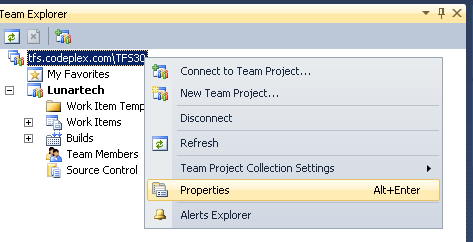
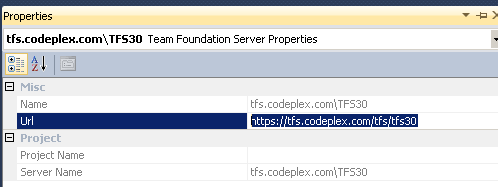
So, the question is, how to figure out what the TFS Team Project Collection URI is. This can easily be found out by looking at the properties of the team project collection.
How do i know what the URI of my TFS server is,
OR
![image_thumb[15]](/images/tarunarora/tfs-2010-sdk-connecting-to-tfs-2010-programmaticallyndashpart-1/2ff9182f-image_thumb15_2.png "image_thumb[15]")
![image_thumb[19]](/images/tarunarora/tfs-2010-sdk-connecting-to-tfs-2010-programmaticallyndashpart-1/43322e99-image_thumb19_2.png "image_thumb[19]")
Note – You need to be have Team Project Collection view details permission in order to connect, expect to receive an authorization failure message if you do not have sufficient permissions.
Case 1: Connect by URI
// URI of the team project collection string _myUri = @"https://tfs.codeplex.com:443/tfs/tfs30";
TfsConfigurationServer configurationServer = TfsConfigurationServerFactory.GetConfigurationServer(new Uri(_myUri));
Case 2: Connect by URI, prompt for credentials
// URI of the team project collection string _myUri = @"https://tfs.codeplex.com:443/tfs/tfs30";
TfsConfigurationServer configurationServer = TfsConfigurationServerFactory.GetConfigurationServer(new Uri(_myUri), new UICredentialsProvider); configurationServer.EnsureAuthenticated;
Case 3: Connect by URI, custom credentials
In order to use this method of connectivity you need to implement the interface ICredentailsProvider public class ConnectByImplementingCredentialsProvider: ICredentialsProvider { public ICredentials GetCredentials(Uri uri, ICredentials iCredentials) { return new NetworkCredential("UserName", "Password", "Domain"); }
public void NotifyCredentialsAuthenticated(Uri uri) { throw new ApplicationException("Unable to authenticate"); } }
And now consume the implementation of the interface // URI of the team project collection string _myUri = @"https://tfs.codeplex.com:443/tfs/tfs30";
ConnectByImplementingCredentialsProvider connect = new ConnectByImplementingCredentialsProvider; ICredentials iCred = new NetworkCredential("UserName", "Password", "Domain"); connect.GetCredentials(new Uri(_myUri), iCred);
TfsConfigurationServer configurationServer = TfsConfigurationServerFactory.GetConfigurationServer(new Uri(_myUri), connect); configurationServer.EnsureAuthenticated;
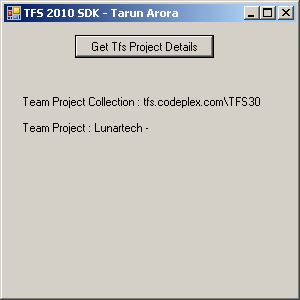
Programmatically query TFS using the TFS SDK for all Team Project Collections and retrieve all Team Projects and output the display name and description of each team project.
CatalogNode catalogNode = configurationServer.CatalogNode;
ReadOnlyCollection tpcNodes = catalogNode.QueryChildren( new Guid[] { CatalogResourceTypes.ProjectCollection }, false, CatalogQueryOptions.None);
// tpc = Team Project Collection foreach (CatalogNode tpcNode in tpcNodes) { Guid tpcId = new Guid(tpcNode.Resource.Properties["InstanceId"]); TfsTeamProjectCollection tpc = configurationServer.GetTeamProjectCollection(tpcId);
// Get catalog of tp = 'Team Projects' for the tpc = 'Team Project Collection' var tpNodes = tpcNode.QueryChildren( new Guid[] { CatalogResourceTypes.TeamProject }, false, CatalogQueryOptions.None);
foreach (var p in tpNodes) { Debug.Write(Environment.NewLine + " Team Project: " + p.Resource.DisplayName + " - " + p.Resource.Description + Environment.NewLine); } }
Output

You can download a working demo that uses TFS SDK 2010 to programmatically connect to TFS 2010.
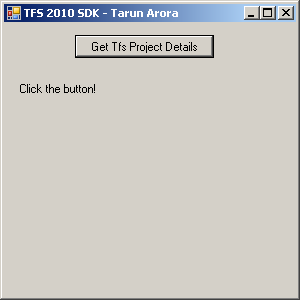
Screen Shots of the attached demo application,
Suggested Further Reading
Enjoy