
Much has been talked about the new release of ASP.NET MVC, i.e. MVC 3 and the new Razor syntax and the ability to simplify the development. Razor uses the @ prefix for switching between code and HTML and that kind of simplifies it when compared to using <%: symbol as with the case in MVC and ASPX engines.
Here is a nice article from on how all of these fit together
Not just that, Razor comes with a lot of goodies. The Helper classes simplify in doing some of the common tasks, doing common scenarios like integrating Twitter, Facebook or PayPal into your applications.
To begin with, am using the following
1. Visual Studio 2010 Service Pack 1. You can install it from Download details- Microsoft Visual Studio 2010 Service Pack 1
2. ASP.NET MVC 3 and the Tools Update. You can install it from http://www.microsoft.com/downloads/en/details.aspx?FamilyID=82cbd599-d29a-43e3-b78b-0f863d22811a&displaylang=en
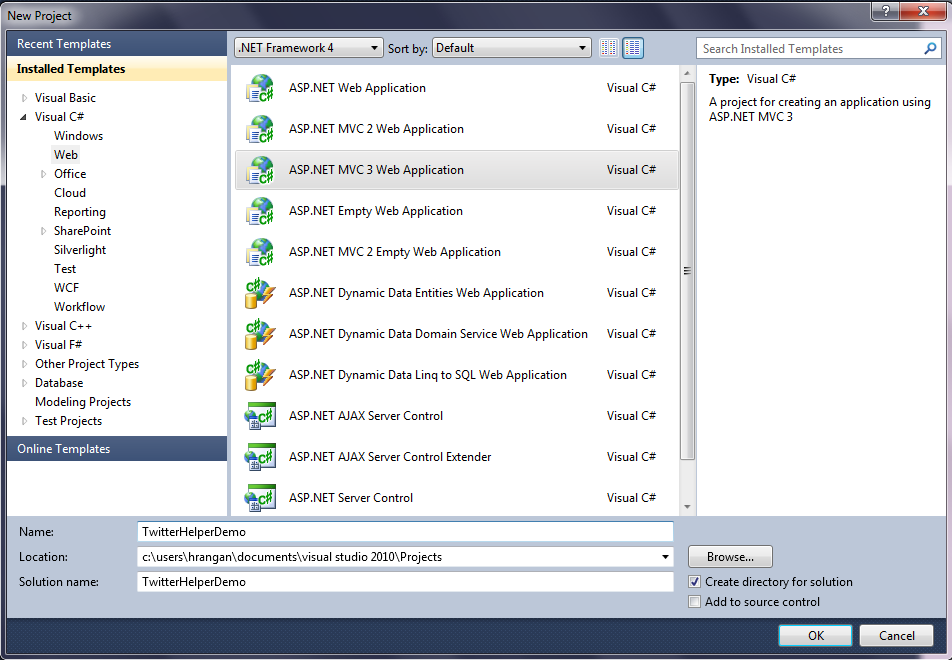
Once, everything is set, create a File – New – ASP.NET MVC3 Web Application and give it a name “TwitterHelperDemo”
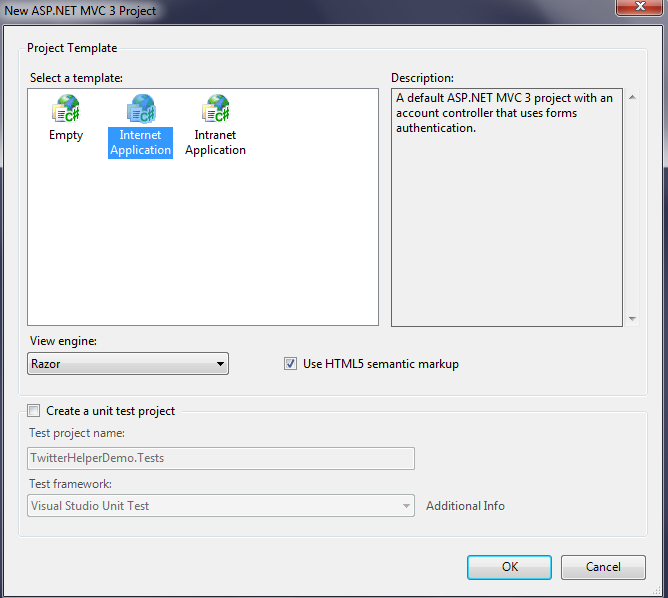
In the next screen, allow the default “Razor” as the View engine and click ok to create the web application
Visual Studio creates the skeleton project structure and scaffolds the default Home Controller and Account Controller. For the purpose of this sample, we will just use the Index.cshtml View which is under the Home folder under Views.
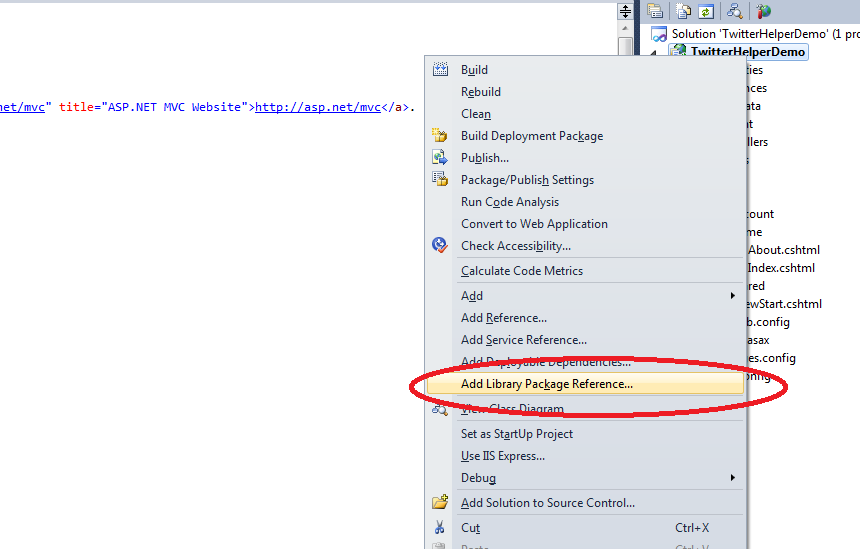
Now, we need to get the Helpers installed before starting to use. In the Visual Studio Solution Explorer, right click the Project and select “Add Library Package Reference”
The “Add Library Package Reference” dialog opens up and lists the installed Helpers.
Click on the “Online” tab and type “Twitter” in the search box on top right. It will try and find results online. Choose the Twitter.Helper (click) and Install.
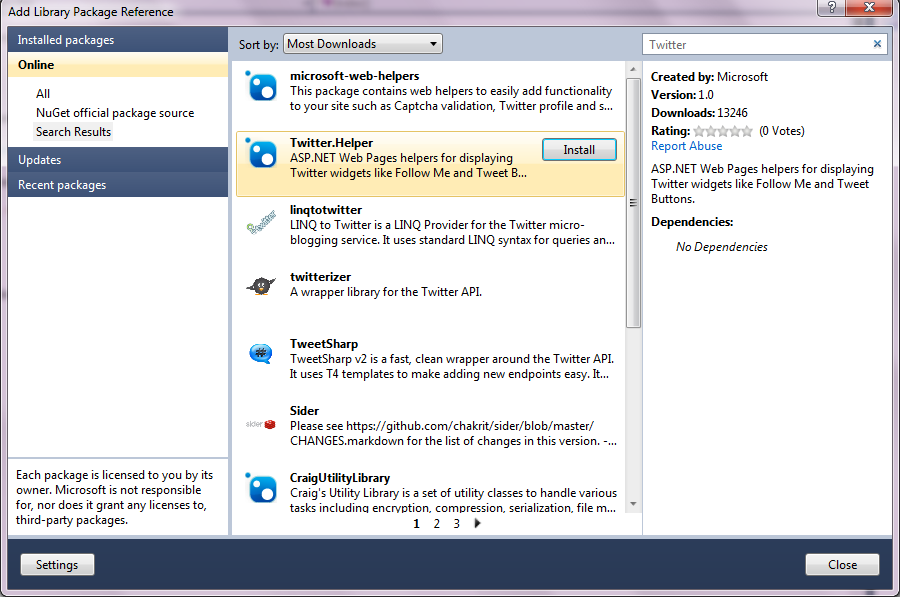
It installs in a second and you can close the dialog.
In the root director, you will find packages.config file. Open the file to verify if the package is installed. If it is installed, it would list as
Next, open the Index.chstml file and remove the default “To Learn ASP.NET MVC” message within the paragraph.
Start typing @Twitt and you should see intellisense for TwitterGoodies.
Add @TwitterGoodies.Profile(“TWITTER HANDLE”)
When you run the solution, you can see the Twitter Profile loading and the latest tweets showing up.
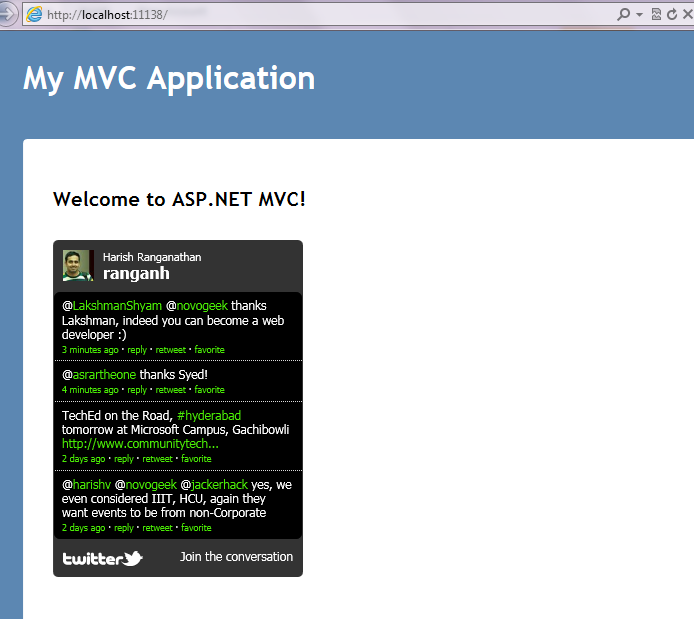
You can try more options like @TwitterGoodies.Search("#webcamps") and @TwitterGoodies.TweetButton
The complete code for this page is
@{ ViewBag.Title = "Home Page"; }
_**
@ViewBag.Message
@TwitterGoodies.Profile("ranganh")
@TwitterGoodies.Search("#webcamps")
@TwitterGoodies.TweetButton
**_There are even more options like FollowButton, WriteTo which expects a TextWriter to post your tweet from the page etc.,
This way, we can simply integrate Twitter into your ASP.NET MVC 3 Application.
Cheers!!