
As a Visual Studio extension developer you are required to keep the aesthetics of Visual Studio in tact when you integrate your extension with Visual Studio. Your extension looks odd when you try to use windows controls and dialogs in your extensions. Visual Studio SDK exposes many interfaces so that your extension looks as integrated with Visual Studio as possible.
When your extension is performing a long running task, you have many options to notify the progress to the user. One such option is through Visual Studio status bar. I have previously blogged about displaying progress through Visual Studio status bar. In this blog post I am going to highlight another way using IVsThreadedWaitDialog2 interface.
One thing to note is, as the IVsThreadedWaitDialog2 interface name suggests it is a dialog hence user cannot perform any action when the dialog is being shown. So Visual Studio seems responsive to user, even when a task is being performed. Visual Studio itself makes use of this interface heavily. One example is when you are loading a solution (.sln) with lot of projects Visual Studio displays dialog implemented by this interface (screenshot below).
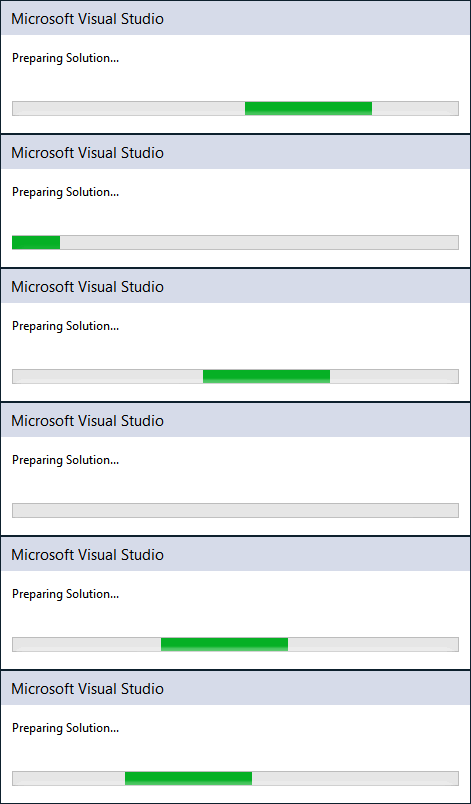
So the first step is to get the instance of IVsThreadedWaitDialog2 interface using IServiceProvider interface.
var dialogFactory = _serviceProvider.GetService(typeof(SVsThreadedWaitDialogFactory)) as IVsThreadedWaitDialogFactory; IVsThreadedWaitDialog2 dialog = null; if (dialogFactory!= null) { dialogFactory.CreateInstance(out dialog); }
So if your have the package initialized properly out object dialog will be not null and would contain the instance of IVsThreadedWaitDialog2 interface. Once the instance is got, you call the different methods to manage the dialog. I will cover 3 methods StartWaitDialog, EndWaitDialog and HasCanceled in this blog post.
You show the progress dialog as below.
if (dialog!= null && dialog.StartWaitDialog( "Threaded Wait Dialog", "VS is Busy", "Progress text", null, "Waiting status bar text", 0, false, true) == VSConstants.S_OK) { Thread.Sleep(4000); }
As you can see from the method syntax it is very similar to standard windows message box. If you pass true to the 7th parameter to StartWaitDialog method, you will also see a cancel button allowing user to cancel the running task. You can react when user cancels the task as below.
bool isCancelled; dialog.HasCanceled(out isCancelled); if (isCancelled) { MessageBox.Show("Cancelled"); }
Finally, you can close the dialog when you complete the task running as below.
int usercancel; dialog.EndWaitDialog(out usercancel);
To help you quickly experience the above code, I have created a sample. It is available for download from GitHub. The sample creates a tool window with two buttons to demo the above explained scenarios. The tool window can be accessed by clicking View –> Other Windows -> ProgressDialogDemo Window