
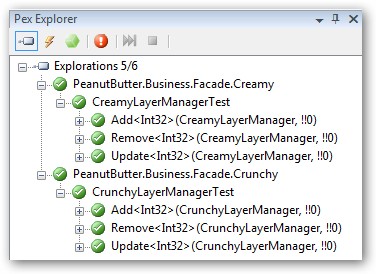
After cleaning up the “Not Implemented Exception” throws in the concrete class implementations of IBusiness Manager, Pex delivered a set of PUTs for each layer.
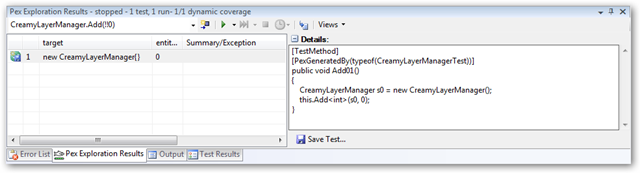
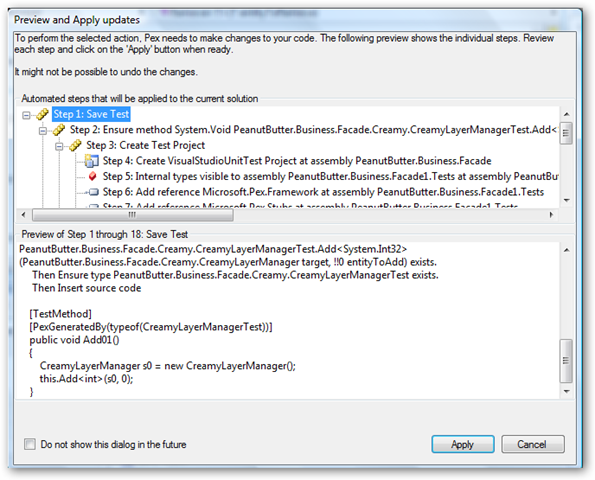
Here’s the details in the Pex Exploration window. Notice the disk in the lower right hand of the icon in the far left gutter, we have a new test. Each new test will have that, telling us we need to save it. If it’s an update to the PUT, then we’ll just have the sunburst in the upper left hand corner. The other visual queue is under the “Details” rich text box… “Save Test…” Clicking “Save Test…” generates a new dialog that tells us what Pex is about to do to our PUT project.
Pex is *very* good about telling us what he’s going to do to our projects and PUTs, so this type of dialog is going to get very familiar, unless you tick the “Do not show this dialog in the future” checkbox. I would let it pop until you get used to Pex and you’ve moved through at least one set of your examples to see what Pex can do, and is doing, for your PUTs. After we click “Apply” we get a summary of each successful or unsuccessful step.
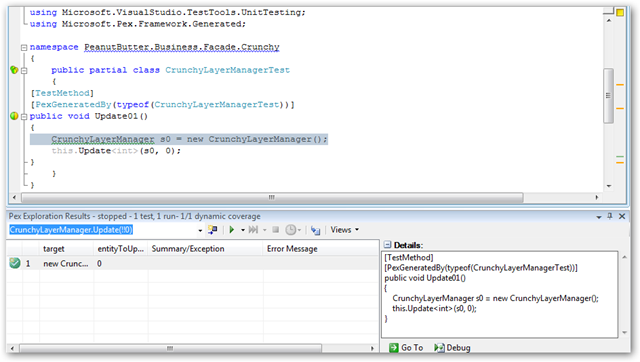
Now, were have a test method that was previewed in the dialog above. Notice the green check mark icon as well. This test is part of the Pex test project now. Well do the same for the rest of the new tests, individually.
The unit test explorer looks like this now:
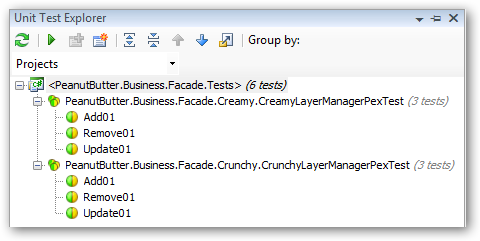
Our unit test base line looks like this:
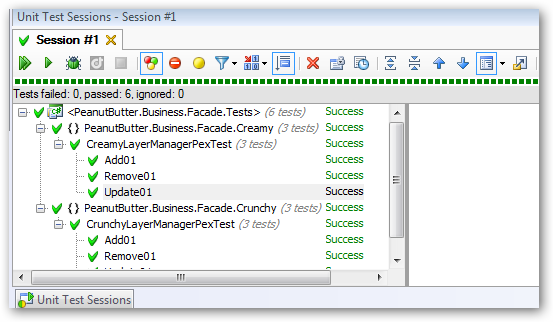
We have some very boring code. We need to pass in something to Add, Remove, and Update so we can see some of the other Pex features, and how Pex’ behavior changes based on your code structure. That’s next.
Until then.