
When restoring a database backup, by default, SQL Server places the database files in the master database file directory. In this example, that location is in L:\MSSQL10.CHTL\MSSQL\DATA as shown by the issuance of sp_helpfile

Hence, the restored files for the database CHTL_L2_DB are in the same directory
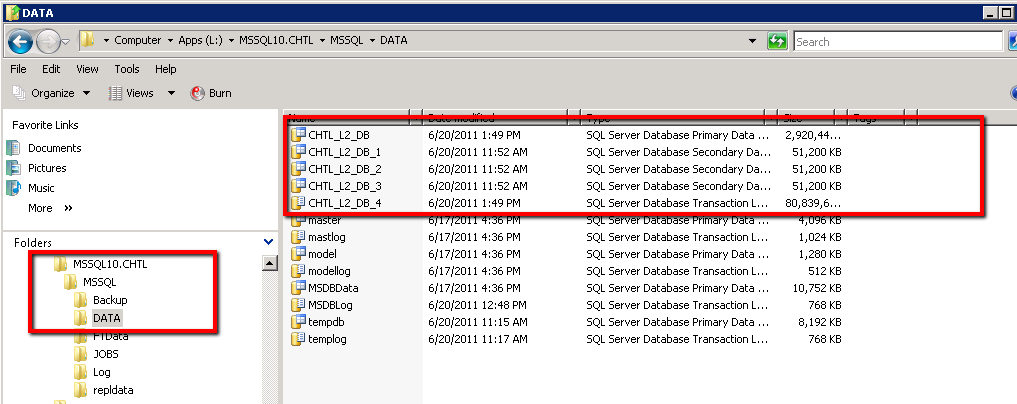
Per SQL Server best practices, the log file should be on its own disk drive so that the database and log file can operate in a sequential manner and perform optimally.
The steps to move the log file is as follows:
- Record the location of the database files and the transaction log files
- Note the future destination of the transaction log file
- Get exclusive access to the database
- Detach from the database
- Move the log file to the new location
- Attach to the database
- Verify new location of transaction log
Record the location of the database file
To view the current location of the database files, use the system stored procedure, sp_helpfile
1: use chtl_l2_db
2: go
3:
4: sp_helpfile
5: go
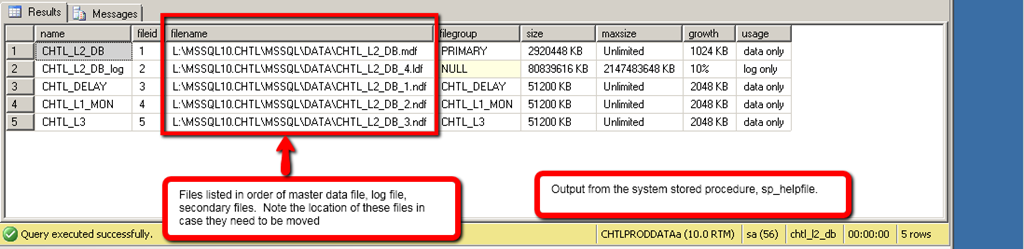
Note the future destination of the transaction log file
The future destination of the transaction log file will be located in K:\MSSQLLog
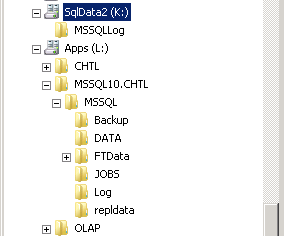
Get exclusive access to the database
To get exclusive access to the database, alter the database access to single_user. If users are still connected to the database, remove them by using with rollback immediate option. Note: If you had a pane connected to the database when the it is placed into single_user mode, then you will be presented with a reconnection dialog box.
1: alter database chtl_l2_db
2: set single_user with rollback immediate
3: go
Detach from the database
Now detach from the database so that we can use windows explorer to move the transaction log file
1: use master
2: go
3:
4: sp_detach_db 'chtl_l2_db'
5: go
After copying the transaction log file
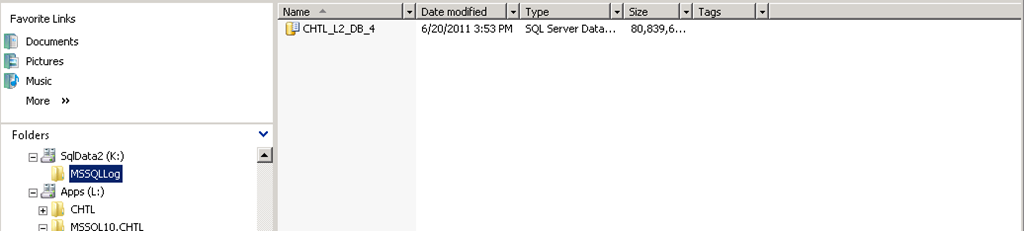
re-attach to the database
1: use master
2: go
3:
4: sp_attach_db 'chtl_l2_db',
5: 'L:\MSSQL10.CHTL\MSSQL\DATA\CHTL_L2_DB.MDF',
6: 'K:\MSSQLLog\CHTL_L2_DB_4.LDF',
7: 'L:\MSSQL10.CHTL\MSSQL\DATA\CHTL_L2_DB_1.NDF',
8: 'L:\MSSQL10.CHTL\MSSQL\DATA\CHTL_L2_DB_2.NDF',
9: 'L:\MSSQL10.CHTL\MSSQL\DATA\CHTL_L2_DB_3.NDF'
10: GO