
In the March release of Bing Developer Assistant, we added the following new features:
1. Pin the Intellisense Window.
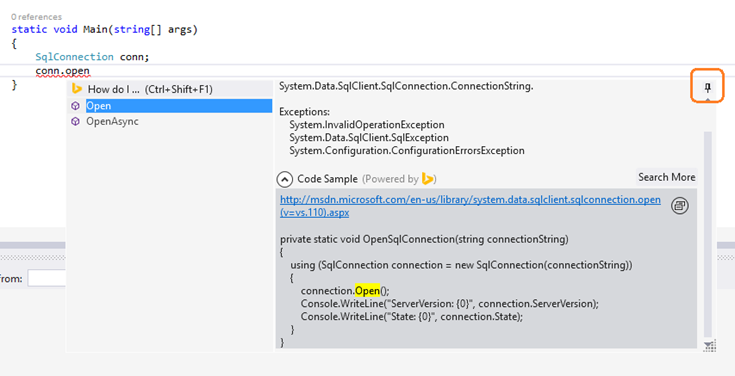
By clicking the new ‘Pin’ button, you can pin the API help info in Visual Studio, and drag it to anywhere on the screen.
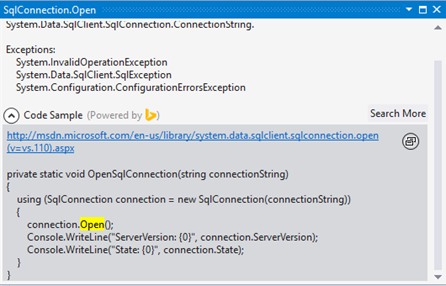
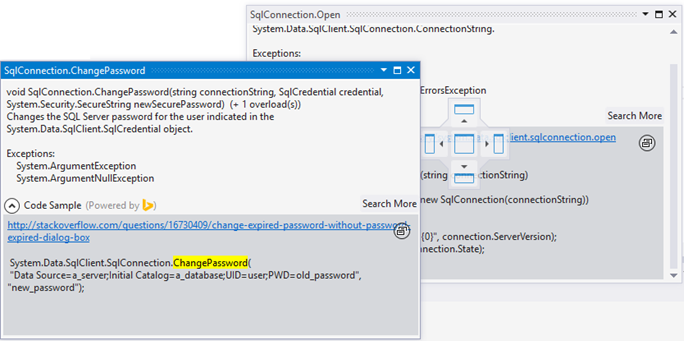
You can also pin multiple API Help windows, and dock them together.
2. The new “How do I…” search in Intellisense
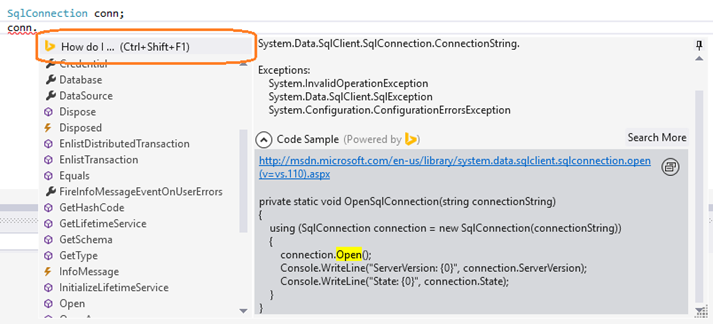
In this release, we added the ‘How do I…’ search in the Intellisense window. You can invoke the ‘How do I’ search using the ‘Ctrl + Shift + F1’ shortcut too.
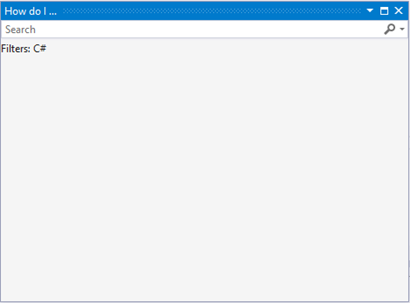
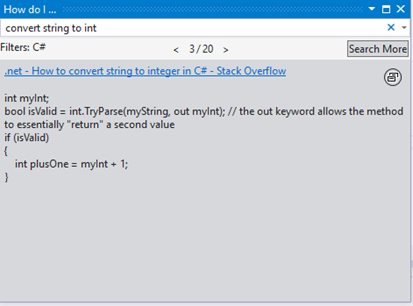
The “How do I” window can be docked anywhere in Visual Studio.
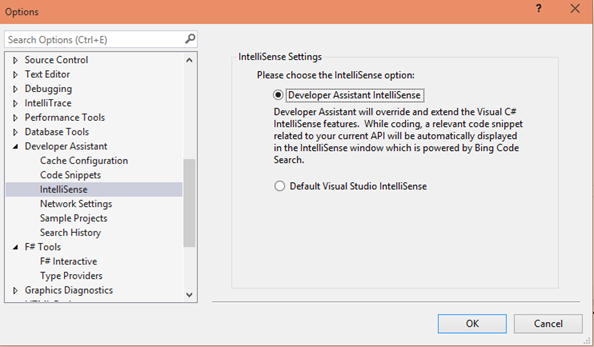
3. Setting to turn on/off the ‘Developer Assistant’ Intellisense experience.
Thanks to our users’ feedback, I added the setting to restore to the default Visual Studio intellisense experience. The setting is available in Visual Studio / TOOLS / Options… / Developer Assistant.
4. API highlight in the Local Code Search result
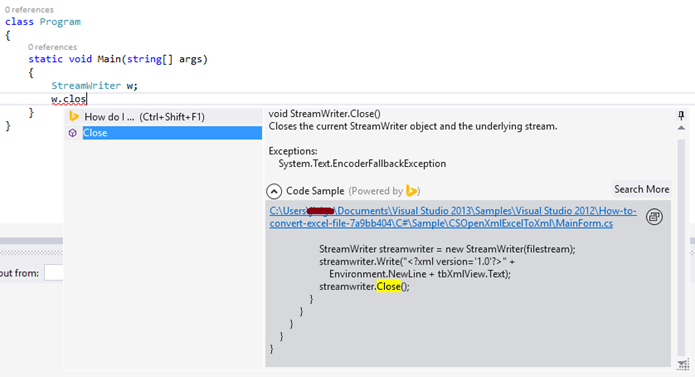
We added the API highlight in the local code search results:
5. The code search box is moved to a separate Toolbar in Visual Studio

The code search box was part of the Standard toolbar in Visual Studio. It made it hard for people to hide/remove the search box. In this version, we moved the search box into its own Toolbar.
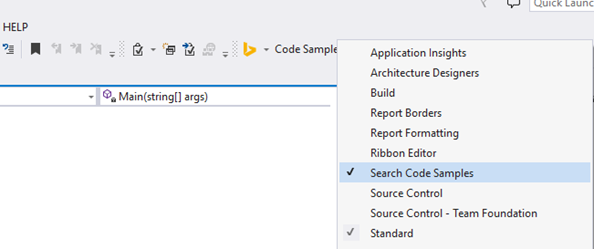
6. ‘Bing Developer Assistant’ renamed to ‘Developer Assistant’.
If you love what you see in this version of Developer Assistant, please recommend it to your friends and colleagues. If you have any problems or suggestions, please contact us at bingdevassistant@microsoft.com. We’ll do our best to take your feedback into account when building future versions of the plugin.