
Visual Studio status bar is one of the most important status reporting indicator for any developer working with Visual Studio. In this blog post we will see how we can make best use of Visual Studio status bar to display a long running task.
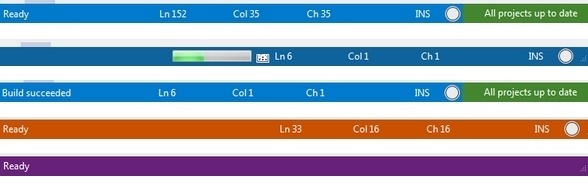
With new Visual Studio 2012 (and 2013), the Visual Studio Microsoft Product Team has enhanced the status bar. Now if you are debugging the status bar turns orange, when solution is loaded it turns blue and when it is idle it will be of violet colour, thus making you notice the status of your IDE. However, from beginning Visual Studio status bar has been very powerful in its functionalities. It supports static text, progress bar, different colours and even allows you to use default icons like build, find, save etc.
To start, Visual Studio SDK exposes IVsStatusbar interface which provides all the functionalities.
- We need to get the Status bar service with this interface. I have defined a property
private IVsStatusbar StatusBar {
  get {
    if (bar == null) {
      bar = GetService(typeof(SVsStatusbar)) as IVsStatusbar;
    }

    return bar;
  }
}
- Once we get the instance of the Statusbar with above property we can just start using it.
- If you just want to display a static text in the status bar, it will be as below.
int frozen;
StatusBar.IsFrozen(out frozen);
if (frozen == 0) {
  StatusBar.SetText("This message is being displayed in status bar");
}
- If variable frozen is zero, that means status bar is not locked by Visual Studio and can be updated.
- To display the progress of a long running task it is ideal to show a progress bar. The code is again simple and we need to use IVsStatusBar.Progress method.
uint cookie = 0;
// Initialize the progress bar.
StatusBar.Progress(ref cookie, 1, "", 0, 0);

for (uint j = 0; j < 5; j++) {
  // Do long running task here
  uint count = j + 1;
  StatusBar.Progress(ref cookie, 1, "", count, 5);
  StatusBar.SetText(messages[j]);
}

// Clear the progress bar.
StatusBar.Progress(ref cookie, 0, "", 0, 0);
StatusBar.FreezeOutput(0);
StatusBar.Clear();
Visual Studio status bar also allows us to use the default icons (like Build, Save etc) if need be. These set of animated icons can be used using IVsStatusBar.Animation method.
object icon = (short)Microsoft.VisualStudio.Shell.Interop.Constants.SBAI_Deploy;

StatusBar.Animation(1, ref icon);
StatusBar.SetText("Deploy icon");
I have created a demo project which can be downloaded from GitHub. Below you can see the demo video showcasing the attached source code working.
posted on Sunday, August 11, 2013 11:59 AM