
The first step in this process is to open Word 2013.
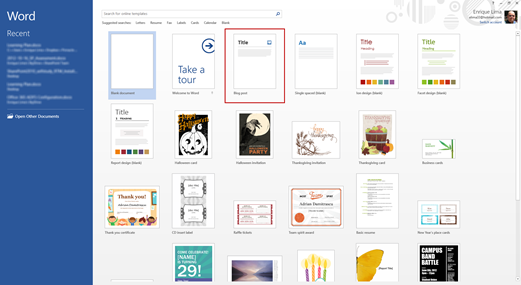
Once there, you will have the different templates available. You will select Blog Post.
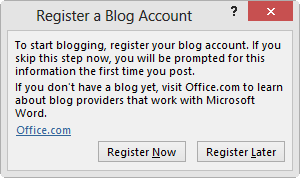
Once the template for Blog Post opens, you will have a dialog popup with the option to Register a Blog Account. And click on Register Now.
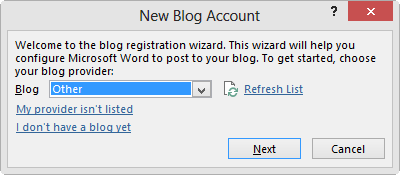
The next part of the dialog will prompt you to provide the New Blog Account details, starting with the type of Blog you have (SharePoint, WordPress, TypePad and others are listed). In our case for GeeksWithBlogs, we will select Other.
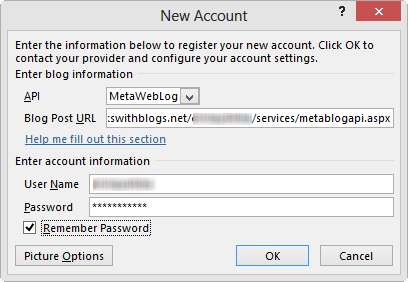
Now come the juicy details! Under the New Account dialog, you will have the API set to MetaWebLog.
Then provide the Blog Post URL, this needs to be https://geekswithblogs.net//services/metablogapi.aspx (remember to change the part with your info).
Then, enter your User Name and Password, click OK and you should be set (you will receive a dialog letting you know information will be transferred).
Hope it works for you!