
Sometime ago, say around mid April, 2011 I posted about Installing SharePoint 2010 on Windows 7 by going in a different path than using the standalone installation.
This post is about what happens after the installation and initial configuration of your Windows 7 “development farm” gets the bits, and goes through the Central Admin and management perspective to get you to the first screen that says “Hi, SharePoint here, would you like to play a game of chess” (yeah, it does not really say that, but you get the idea).
There are several ways of getting to the farm configuration point, using a wizard or getting some scripting behind it (use of PowerShell).
This post is about using the Wizard.
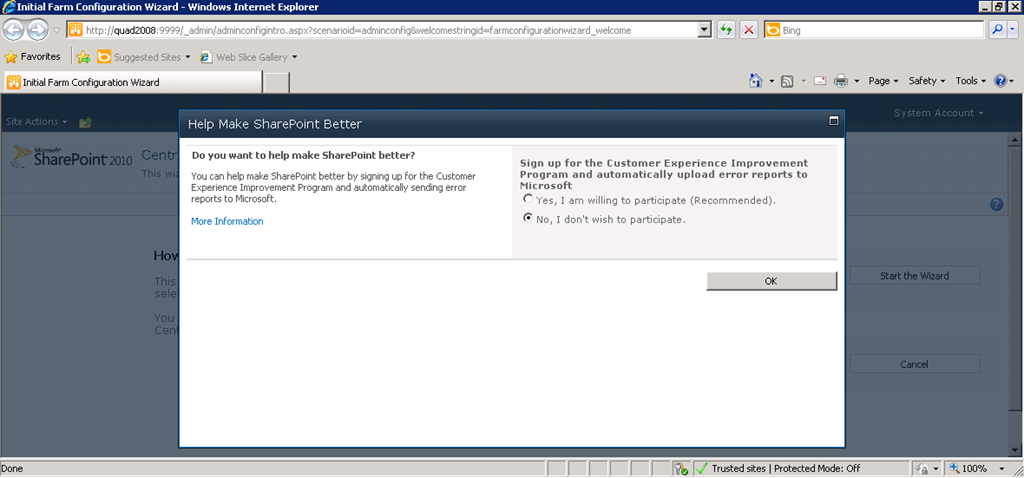
Once you have completed the installation of SharePoint 2010, you will have the following screen welcome you. Select your choice and click OK.
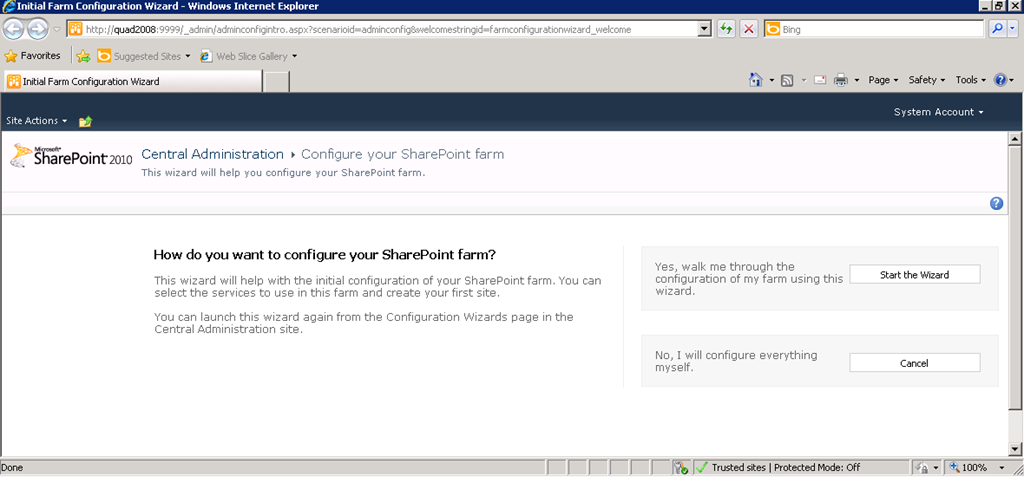
Then, you are presented with the option to run the Wizard, or to cancel and configure everything yourself. This will be discussed in the next post in this series.
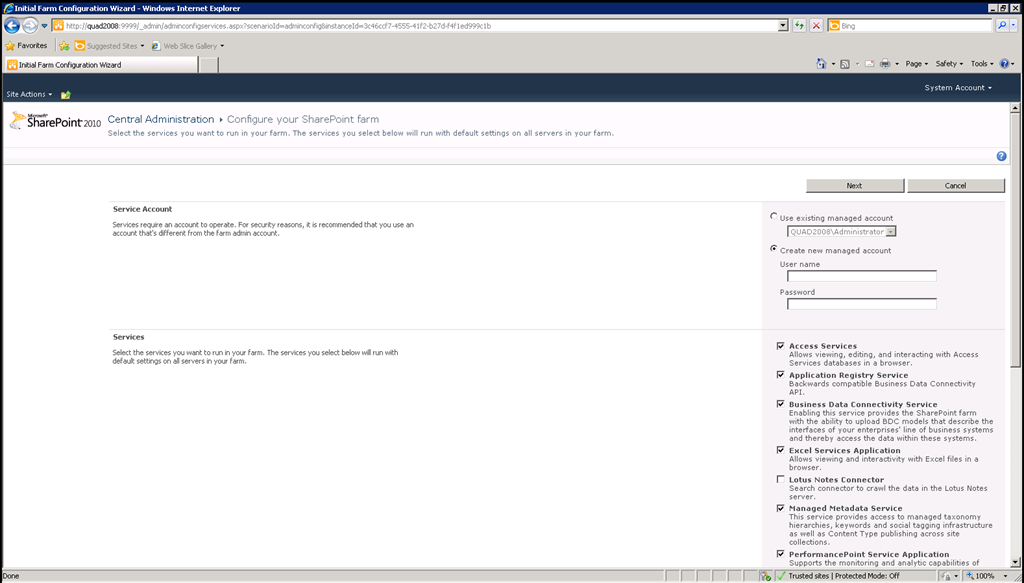
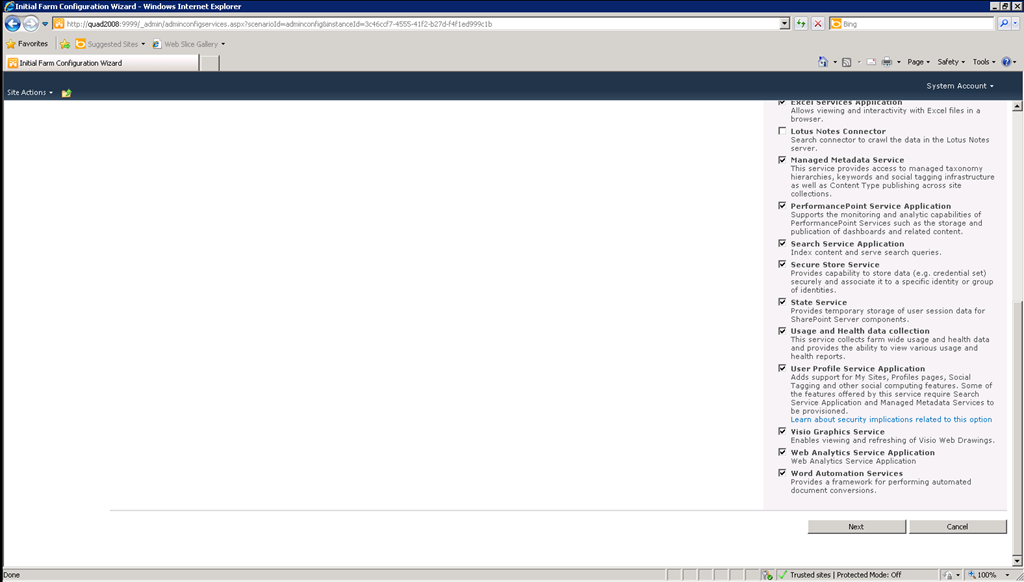
Once you started the wizard to configure your farm, you will be prompted for the Service Account. has an excellent guide that gives you a summary of the service accounts you should be using. The other options you will encounter here are the services you want to run on your farm. As a side note, when you install the standalone option, you are not prompted for this, everything you see as checked is installed. But here we can be selective about what we really need to work with, develop or just flat out discover.
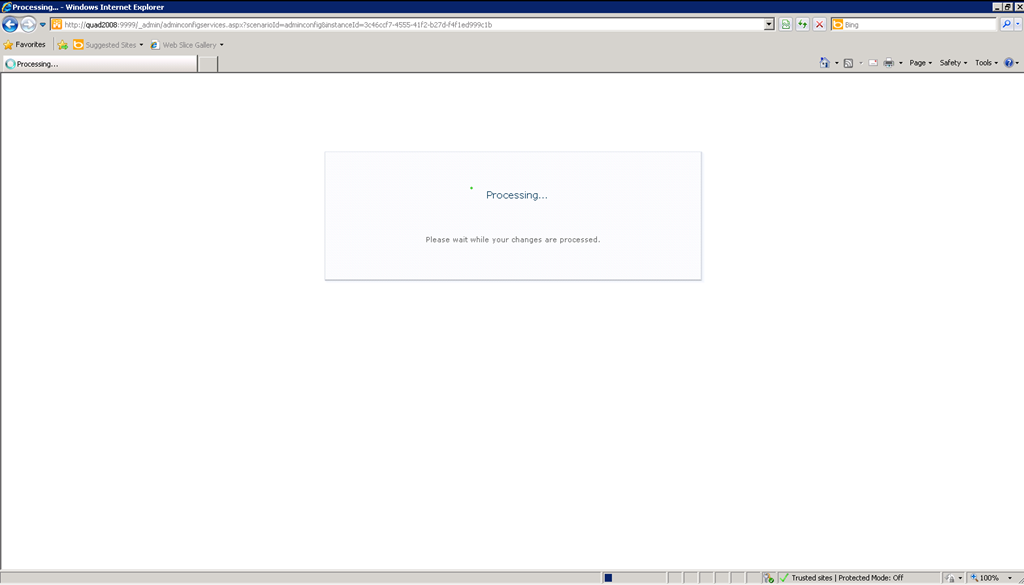
Once it gets going, you will see this
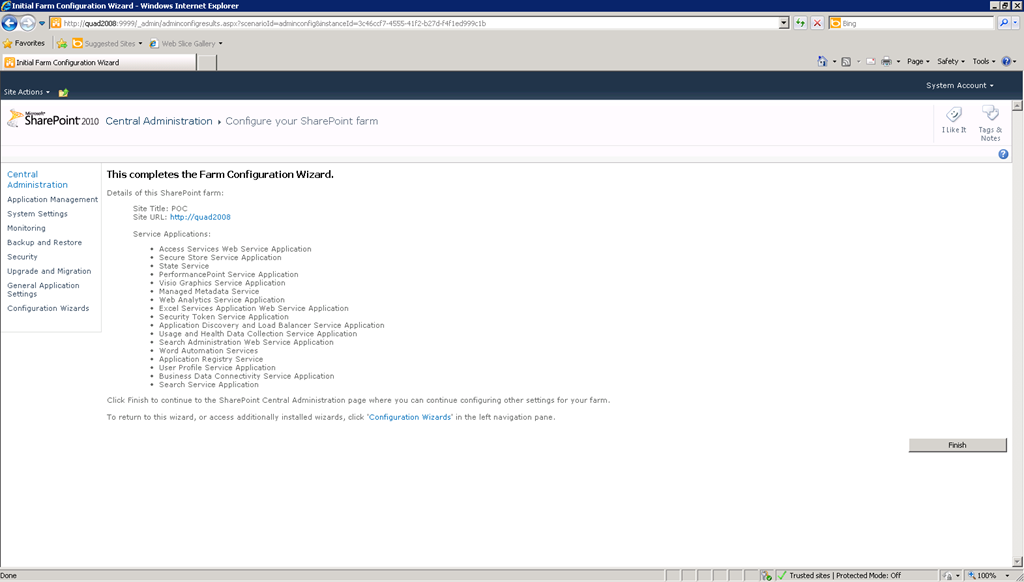
You will come to a point of the Wizard completing and see the confirmation of Service Applications that were configured.
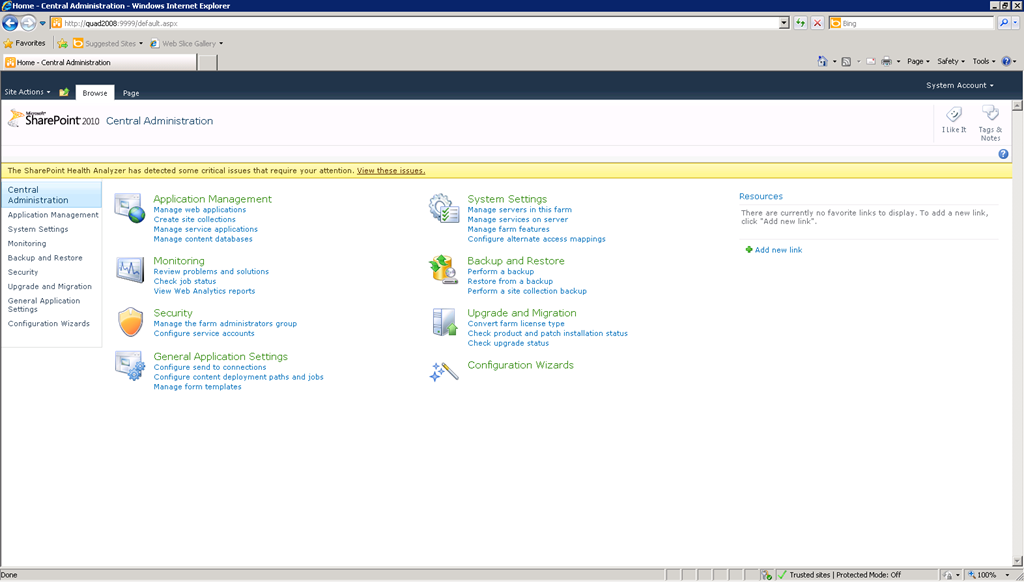
Once you clicked Finish, you will come to the Central Admin display.
Again, my focus here has been from setting up a development environment. Many people have different opinions on how to get a dev environment on their system, using a vm or installing directly. Each has its advantages and disadvantages. This process works on Windows Server 2008 (R2) as well. Getting to know your options and process is a good learning opportunity.