
Changing the VS2015 Icon in Windows 8/8.1

So – you install VS 2015, pin the icon to the start bar and ‘whaaaaaa???’ you discover it’s exactly the same Icon as for VS 2013, which is not handy.

Luckily, it’s pretty simple to change that bad boy.

Step 1

In the start menu, right click on the program you wish to change the icon for, and select ‘Open file location’ (in these pics, I’ve already done the update)
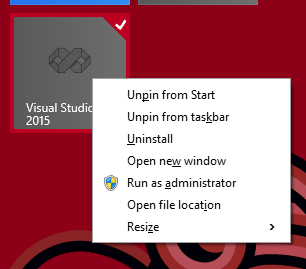
image

Step 2

Right click on the icon and select ‘Properties’
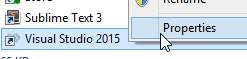
image

Step 3

Then click on Change Icon

Step 4

Pick a new Icon (I used one from: http://www.iconarchive.com/tag/visual-studio)

Step 5

If you have it pinned to the TaskBar, you’ll probably need to unpin and re-pin, if you don’t then the job is done – well done you!

Extra notes for those not on Win 8+

It’d probably work in exactly the same way for Win 7, but I don’t have it so :p

This article is part of the GWB Archives. Original Author: Chris Skardon

New on Geeks with Blogs

  • We Won The One Award I Actually Care About

    Full Scale made the Inc. 5000 for the fifth year straight, the 12th listing across my three companies. Here is why the one award you cannot buy is worth stopping for.

  • Your Customers Build the Features Now

    I let a tool I liked sit dead for a year rather than build the features I wanted. An MCP server meant I never had to, and your customers can do the same to your product.

  • Get the Size of a Directory in Linux the Easy Way

    du -sh for the quick answer, ncdu for the cleanup, df for the disk itself: every command for checking directory size in Linux, plus why du and df never agree.

  • Vim Search and Replace: The Ultimate Guide

    One :%s command replaces every match in a file before a find dialog would even open. The Vim substitute patterns worth the muscle memory: flags, ranges, capture groups, and multi-file edits.