
Silverlight testing is great, we all know that (don’t we??), we’re expected to do it as part of the development process, but once we’ve got an awesome application written and we come to deploy it, we don’t want the test files going out with it…
You might be like me, have the files in a Web project – let’s face it, that’s how we’re pushed into doing it… So let’s stick with it! Now. I’m deploying via the wonders of the Web Deployment shizzle, but this also applies to the classic ‘installer’ project as well.. Baaaasically, we’re going to use the ‘Debug’ / ‘Release’ configurations to include given files.
??
OK, you know in the top of your visual studio editor, you (usually) have a drop down which predominantly reads ‘Debug’? Those are ‘configurations’. Mostly we don’t bother changing it, primarily due to laziness, but also the fact that we generally don’t see ‘Release’ as actually doing anything other than making it harder to find problems :)
 Well today my friends we’re going to change that bad boy…
The next few steps are just helping you set up a new ‘Debug’ configuration, but you can just switch to the ‘Release’ configuration and skip to the end…
First let’s go to the Configuration Manager. There are multiple ways, through the ‘Build’ menu (at the bottom), or via the drop down which currently has ‘Debug’ in it :)
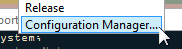 Got it? Select ‘New’ from the ‘Active solution configuration’ drop down:

Create a new configuration, kind of like the picture below shows (or for those graphically challenged – Name: DebugWithNoTests, and Copy settings from: ‘Debug’, ensuring the ‘Create new project configurations’ checkbox is checked).
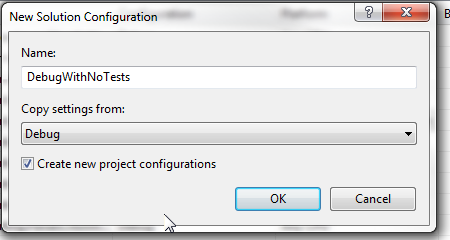 Press OK. VS will do some shizzle, and in the Configuration manager, you will see pretty much exactly what you did before, only with ‘Debug’ replaced with ‘DebugWithNoTests’. Turn off the build options for the test projects. We won’t need them..
IF you skipped down from the top, this is where you’ll be wanting to stop!!!
Close and now we’re one notepad step away from achieving our goals.
Yes, I said notepad. You can’t do what we’re going to do in VS. (Pity).
Go to the folder where your web project is, and right click on the ‘.csproj’ file. Now open it with notepad.
Head on down to the ‘<Content Include’ bits, they’ll look like this:
<ItemGroup> <Content Include="ClientBin\Tests.xap" /> ... </ItemGroup>
Take this and modify each of the files you don’t want deployed and change to:
<Content Include="ClientBin\Tests.xap" Condition="'$(Configuration)' == 'Debug'" />
Once you’ve got that sorted publish your project, once with the Debug configuration selected, and another with any other configuration (‘Release’, ‘DebugWithNoTests’ etc).. No files! Huzzah!