
What’s Anonymous Access?
Anonymous access to your SharePoint site enables all visitors to view your SharePoint site anonymously without having to log in.
With this blog I’d like to go through an easy step wise procedure to enable/set up anonymous access.
Before you actually enable anonymous access on the site, you’ll have to change some settings at the web app level. So let’s start with that:
Prerequisite(s):
1. A hosted SharePoint 2010 farm/server.
2. An existing SharePoint site.
I just thought I’d mention the above pre-reqs, since the steps mentioned below would’nt be valid or a different type of a site.
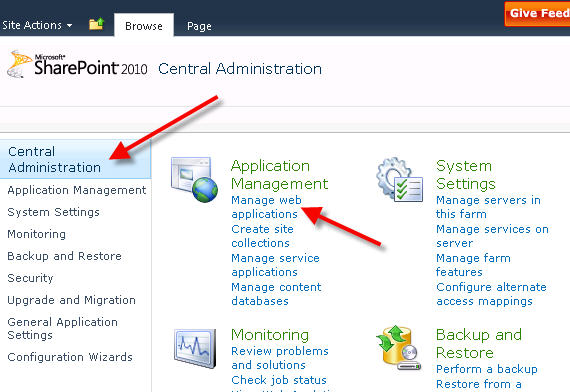
Step 1: In Central Administration, under Application Management, click on the Manage web applications.
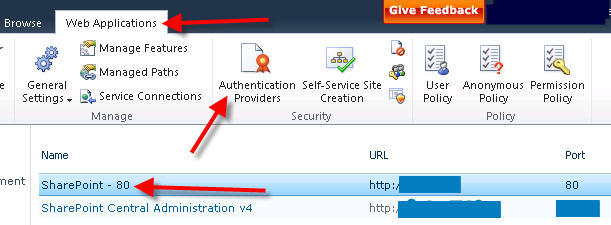
Step 2: Now select the site you want to enable anonymous access and click on the Authentication Providers icon.
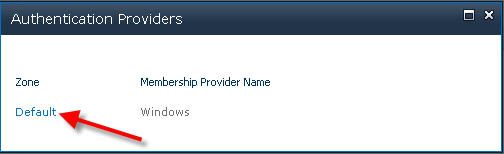
Step 3: On the modal window click on the Default zone.
Step 4: Now under the Edit Authentication section, check Enable anonymous access and click Save.
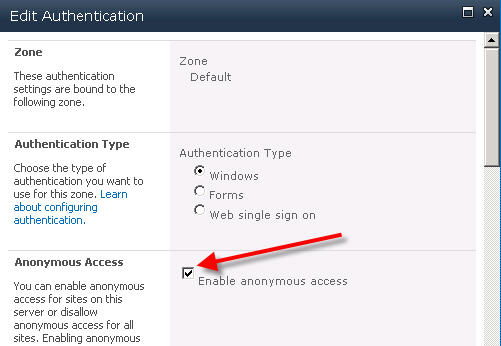
This is basically to make the Anonymous Access authentication mechanism available at the web app level @ IIS. Now, web application will allow anonymous access to be set.
5. Going back to Web Application Management click on the Anonymous Policy icon.
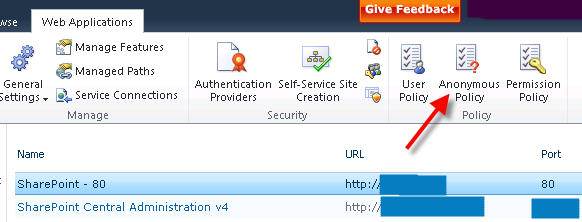
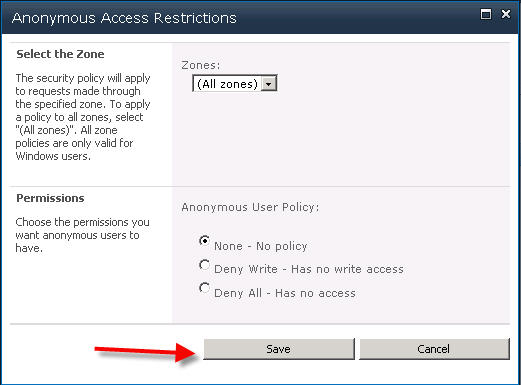
Step 6: Also before we proceed any further, under the Anonymous Access Restrictions (@ web app mgmt.) select your Zone and set the Permissions to None – No policy and click Save.
Step 7: Now lets navigate to your top level site collection for the web application.
Click the Site Actions > Site Settings. Under Users and Permissions click Site permissions. !
Step 8: Under Users and Permissions, click on Site Permissions.!
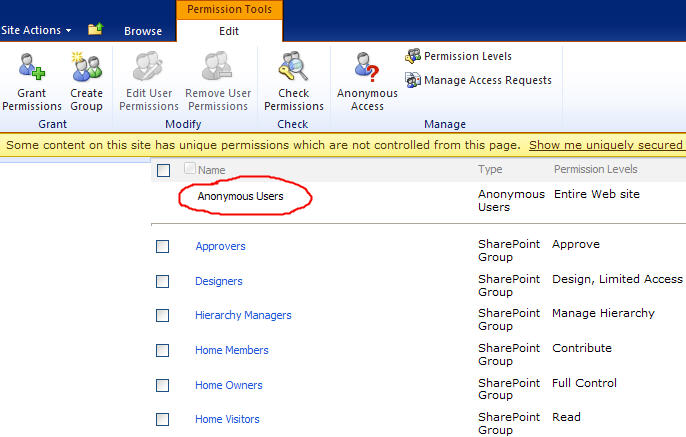
Step 9: Under the Edit tab, click on Anonymous Acces****s.!
Step 10: Choose whether you want Anonymous users to have access to the entire Web site or to lists and libraries only, and then click on OK.
!
You should now be able to see the view as below under your permissions
Also keep in mind:
If you are trying to access the site from a browser within the domain, then you’ll need to change some browser settings to see the after affects. Normally this is because the browsers (Internet Explorer) is set to log in automatically to intranet zone only, not sure if you have explicitly changed the zones and added it to trusted sites. If this is from a box within your domain please try to access the site by temporarily changing the Internet Explorer setting to Anonymous Logon on the zone that the site is added example "Intranet" and try.
You will find the same settings by clicking on Tools > Internet Options > Security Tab.