posts - 280, comments - 318, trackbacks - 0

My Links

News

View Steve Michelotti's profile on LinkedIn

Twitter


Tag Cloud

Archives

Post Categories

Blend Bloggers

Bloggers that I follow

Books

F# Bloggers

F# Communities

F# Online Books

Fonts

HTML CSS ASP

Machine Learning

My Links

My Local UserGroups

My Online Presence

MY SA Links

Online Seminars

SA Software Companies

Web Design

Log4Net basics with a Console Application (c#)


If you are looking for a great introductory article on Log4Net, I would recommend reading the Log4Net tutorial by Tim Corey.

Tim goes through quite a bit, I just want to cover the very bare minimum for getting log4net to work in a console application.

Step 0 – Reference Log4Net

Using NuGet this is really easy – but no matter how you do it, you should end up with a reference to log4net in your project.
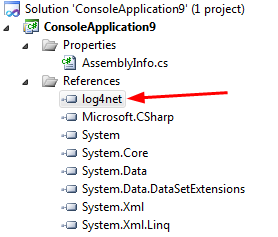
Log4Net

Step 1 – Add an entry to AssemblyInfo.cs

Add the assembly for the log4net.config to AssemblyInfo.cs

[assembly: log4net.Config.XmlConfigurator(Watch = true)]


Step 2 – Config settings file for App.config

Add a config file called App.config to your solution if it is not there already…

I added the following config settings within this file as follows:

<?xml version="1.0" encoding="utf-8" ?>
<configuration>
  <configSections>
    <section name="log4net" type="log4net.Config.Log4NetConfigurationSectionHandler,log4net, Version=1.2.10.0, Culture=neutral, PublicKeyToken=1b44e1d426115821" />
  </configSections>

  <!-- Log4net Logging Setup -->
  <log4net>
    <appender name="FileAppender" type="log4net.Appender.FileAppender,log4net">
      <file value="c:\\mylogfile.txt" />
      <appendToFile value="true" />
      <lockingModel type="log4net.Appender.FileAppender+MinimalLock" />
      <layout type="log4net.Layout.PatternLayout">
        <conversionPattern value="%date [%thread] %level %logger - %message%newline" />
      </layout>
      <filter type="log4net.Filter.LevelRangeFilter">
        <levelMin value="INFO" />
        <levelMax value="FATAL" />
      </filter>
    </appender>

    <root>
      <level value="DEBUG"/>
      <appender-ref ref="FileAppender"/>
    </root>
  </log4net>
</configuration>

Step 3 – Create an instance of a logger and call logging

To create an instance of a logger, there are a couple of ways you can do this….

One suggestion by Tim is to add the following line within each class where you want to have logging…

        private static readonly log4net.ILog log = log4net.LogManager.GetLogger
        (System.Reflection.MethodBase.GetCurrentMethod().DeclaringType);

I am not sold on this approach, this is something where I would use Dependency Injection to inject the logger, but for a simple console app example this would complicate things, so I would go with the following approach just to get things working…

    class Program
    {
        static void Main(string[] args)
        {
            log4net.Config.BasicConfigurator.Configure();
            ILog log = log4net.LogManager.GetLogger(typeof(Program));
            log.Debug("This is a debug message");
            log.Warn("This is a warn message");
            log.Error("This is a error message");
            log.Fatal("This is a fatal message");
            Console.ReadLine();
        }
    }


Step 4 - Run the application

Simply run the application and you should see log file being created.


Local Disk (C)_2012-01-30_10-28-10

Print | posted on Monday, January 30, 2012 10:29 AM | Filed Under [ C# ]

Feedback

Gravatar

# re: Log4Net basics with a Console Application (c#)

What is causing your blog to be oversized in the browser? I thought maybe it was an image, but it seems to be happening in each of your posts? I don't find it happening on other geek blogs.. Just kind of giving you a heads up... Wesley
2/23/2012 6:05 AM | Ambit Energy
Post A Comment
Title:
Name:
Email:
Website:
Comment:
Verification:


Powered by:
