
I don't know about you, but I have always felt that Microsoft did a huge injustice to the development community by leaving the Static Code Analysis capability out of Visual Studio 2005 Professional Edition. Just in case you don't know what this is, it is an integrated version of FxCop that allows you to configure Code Analysis and view the results from within Visual Studio.
I'm not going to go into details about why Code Analysis is beneficial (perhaps I'll save that for another post), but having the results integrated with Visual Studio and being able to run the analysis as part of the build is very convenient.
If you have Visual Studio 2005 Professional edition, you were pretty much out of luck. There are a few ways you can do this, each with limitations.
External Tool #1
You can create an external tool to run FxCop and put the output in the Output window. To do this, follow these simple steps:
-
Go to Tools -> External Tools
-
Click "Add" and fill in the following details
Title: FxCop
Command: C:\Program Files\Microsoft FxCop 1.35\FxCopCmd(.)exe
Arguments: /c /f:"$(TargetPath)" /r:"C:\Program Files\Microsoft FxCop 1.35\Rules" /consolexsl:"C:\Program Files\Microsoft FxCop 1.35\Xml\VSConsoleOutput.xsl"
Initial Directory: C:\Program Files\Microsoft FxCop 1.35
Check the "Use Output window" checkbox
Apparently, there is a bug in the Metaweblog API that prevents me from putting the correct path to the FxCopCmd executable. In the path shown above, remove the parenthesis characters surrounding the period.
These steps assume that FxCop is installed in the default location. You will also need to download a different XSL stylesheet to create messages that can be double-clicked within the Visual Studio Output window to jump to the source location of the violation.
The drawback to doing this is that it is a separate step you have to remember to run each time and the output is static (you can't click on it to take you to the line). Another drawback is that you can't customize the list of rules.
External Tool #2
A variation on this is to use an external FxCop project file. The project file should be the same name as your solution file with a .fxcop extension. For example, if your solution is named Abc.sln, the FxCop project file should be named Abc.sln.fxcop. The project file must also be located in the same directory as the solution file.
Follow the same steps above, but change the Arguments to:
/c /p:"$(SolutionDir)\$(SolutionFileName).fxcop" /consolexsl:"C:\Program Files\Microsoft FxCop 1.35\Xml\VSConsoleOutput.xsl"
This solves the problem of not being able to customize the rules but introduces another file to keep track of. It does have the benefit of allowing someone without Visual Studio to run FxCop, although I'm not sure how useful that would actually be.
FxCop Addin
There is a very good open source Visual Studio add-in that solves most of the integration problems. Once the add-in is installed, you gain a new menu choice in the Project menu and the Project context menu named "Add Code Analysis Support". This menu option adds a new property entry to the project file that tells MSBuild to run FxCop after the build is complete.
Since this add-in modifies the project file, as soon as you add support to the project, Visual Studio prompts you to reload the project. Once you reload the project, you are presented with a security dialog:
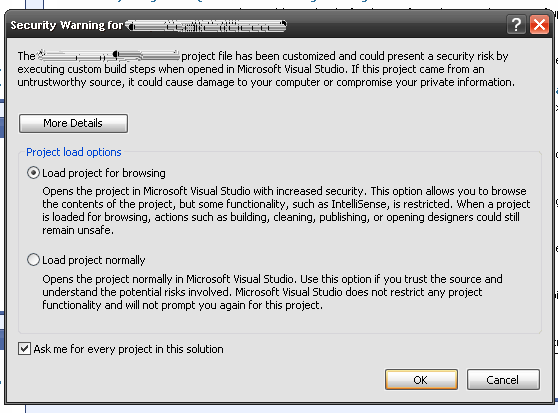
You will receive this dialog the first time the project is opened. You want to select the "Load project normally" option. Fortunately, you should only need to do this once; however, if you send the solution or project to someone else, they will also see this warning.
Behind the scenes, the add-in is running FxCop and translating the output through a stylesheet. You do get a context menu in the error list window that allows you to view more details about the violation, and generate suppression messages to place in your code.
Unfortunately, the add-in also does not provide a way to customize the list of rules, and it also looks like there hasn't been any active development on it since August 2006.
Visual Studio 2005 Team Edition Static Analysis
This is almost like the holy grail of static analysis solutions. Everything I have found on the Internet has pretty much said that it wasn't possible to enable the same type of static analysis that the Visual Studio Team editions have in Visual Studio Professional. In one sense, they are correct. However, it is possible to get 99% of the functionality working.
Disclaimer:
This is neither a supported nor sanctioned solution by Microsoft and involves registry changes as well as additional Microsoft DLLs that are not part of Visual Studio 2005 Professional.
Since I'm not 100% sure on the redistributable concerns of these files, I am not going to make them available as part of this post. I will give step-by-step instructions on how to get this working under the assumption that you already have these files from some other means. All of the files required for this solution are part of Visual Studio Team Edition for Software Developers (and probably part of any of the Team Edition versions).
- Copy the C:\Program Files\MSBuild\Microsoft\VisualStudio\v8.0\CodeAnalysis folder.
- Copy the C:\Program Files\Microsoft Visual Studio 8\Team Tools\Static Analysis Tools folder.
These folders should be copied to the same locations on your Visual Studio 2005 Professional system. The simplicity of this approach works because the Microsoft.Common.targets file already includes all of the necessary logic to include the Code Analysis targets file if it exists.
Unfortunately, this only gets us half way there. To complete the picture, we need to make some registry changes. The registry changes are what tell Visual Studio to load the Static Analysis Tools package. It is this package that governs the interaction between Visual Studio and the build process.
The easiest way is to copy the following code into Notepad and save it with a .reg extension. Then you can merge the file into the registry.
Windows Registry Editor Version 5.00
[HKEY_LOCAL_MACHINE\SOFTWARE\Microsoft\VisualStudio\8.0\Packages\{72391CE3-743A-4a55-8927-4217541F6517}]
@="StanPackage"
"InprocServer32"="C:\\Program Files\\Microsoft Visual Studio 8\\Team Tools\\Static Analysis Tools\\stanpackage.dll"
[HKEY_LOCAL_MACHINE\SOFTWARE\Microsoft\VisualStudio\8.0\Packages\{72391CE3-743A-4a55-8927-4217541F6517}\SatelliteDll]
@=""
"DllName"="StanPackageUI.dll"
"Path"="C:\\Program Files\\Microsoft Visual Studio 8\\Team Tools\\Static Analysis Tools\\"
[HKEY_LOCAL_MACHINE\SOFTWARE\Microsoft\VisualStudio\8.0\CLSID\{72391CE3-743A-4a55-8927-4217541F6517}]
@="StanPackage class"
"InprocServer32"="C:\\Program Files\\Microsoft Visual Studio 8\\Team Tools\\Static Analysis Tools\\stanpackage.dll"
"ThreadingModel"="Apartment"
[HKEY_LOCAL_MACHINE\SOFTWARE\Microsoft\VisualStudio\8.0\CLSID\{960d6d3a-0bd3-4afa-a0a6-31f7f2fe3a8e}]
@="VCRuleSelectionPage class"
"InprocServer32"="C:\\Program Files\\Microsoft Visual Studio 8\\Team Tools\\Static Analysis Tools\\stanpackage.dll"
"ThreadingModel"="Apartment"
[HKEY_LOCAL_MACHINE\SOFTWARE\Microsoft\VisualStudio\8.0\CLSID\{984ae51a-4b21-44e7-822c-dd5e046893ef}]
@="VSRuleSelectionPage class"
"InprocServer32"="C:\\Program Files\\Microsoft Visual Studio 8\\Team Tools\\Static Analysis Tools\\stanpackage.dll"
"ThreadingModel"="Apartment"
[HKEY_LOCAL_MACHINE\SOFTWARE\Microsoft\VisualStudio\8.0\Services\{dfb40067-f0c3-425f-9936-951a7900a0ac}]
@="{72391CE3-743A-4a55-8927-4217541F6517}"
"Name"="SStaticAnalysisService"
[HKEY_LOCAL_MACHINE\SOFTWARE\Microsoft\VisualStudio\8.0\Services\{AEBE2A87-9063-4B11-95C0-14E48CEC4439}]
@="{72391CE3-743A-4a55-8927-4217541F6517}"
"Name"="SFxCopLoggerService"
[HKEY_LOCAL_MACHINE\SOFTWARE\Microsoft\VisualStudio\8.0\Setup\EDev]
"StanDir"="C:\\Program Files\\Microsoft Visual Studio 8\\Team Tools\\Static Analysis Tools\\"
"FxCopDir"="C:\\Program Files\\Microsoft Visual Studio 8\\Team Tools\\Static Analysis Tools\\FxCop\\"
"CodeAnalysisErrorListViolationLimit"=dword:000000c8
Open Visual Studio (if you had Visual Studio open, you will need to restart it) and you will now have the "Code Analysis" tab in your project properties. The only thing this solution does also provide is the ability to select a message in the error list window and create the supression messages for it.
The next steps...
Now that I have proven to myself (and hopefully to you as well) that this works, I see two follow up steps. The first one is that everyone should start petitioning Microsoft to include this capability in the Visual Studio "Orcas" Professional release. I think it is too important for it to be limited to only the more expensive editions of Visual Studio.
The second step is to recreate the Microsoft DLLs so that we are able to have the same level of integration without worrying about redistribution issues. Hopefully, step one will negate the need for this, but just in case it doesn't a backup plan is always useful.